
3.1. Arrays Basics#
3.1.1. Numpy Arrays#
NumPy arrays, (N-dimensional arrays, or ndarray) are a powerful extension of Python lists, offering compact storage and fast operations for numerical data in rows and columns.
In NumPy, the terms scalar, vector, and matrix refer to specific dimensions of these arrays.
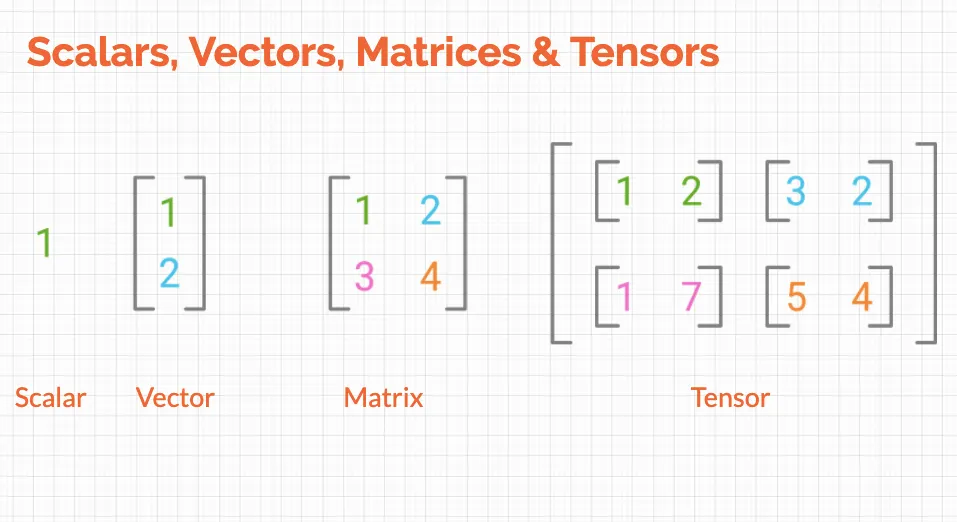
Fig. 3.1 Scalar, Vector, Mmatrix, and Tensor (Harshit Tyagi)#
NumPy is Python’s linear algebra library; therefore, its terminology is commonly used for data science. Some of the essential terms are {cite}``:
Scalar: Any single numerical value is a scalar, as shown in the image above. It is simply denoted by lowercase and italics. For example:
n.Vector: An array of numbers(data) is a vector. You can assume a column in a dataset to be a feature vector.
Matrix: A matrix is a 2-D array of shape (m×n) with m rows and n columns.
Tensor: Generally, an n-dimensional array where n>2 is called a Tensor. But a matrix or a vector is also a valid tensor.
While NumPy arrays can have any number of dimensions, the most common are:
Vectors: 1-dimensional arrays with a single axis
Matrices: 2-dimensional arrays with two axes (rows and columns)
3.1.2. Data Structure#
The primary data structure in NumPy is the N-dimensional array, or ndarray. NumPy’s arrays are a list of lists in Python, but are more compact than Python lists. In essence, a Python list is an array of pointers to heterogeneous Python objects, while a NumPy array is an array of uniform values of the same type (e.g., all integers, all floats) and array elements are stored in one continuous block of memory, similar to how arrays work in C (Fig. 3.2). Python lists are more flexible, but Numpy arrays are smaller in file size, and access in reading and writing items is much faster [Martelli, 2009], which is a huge advantage when dealing with large datasets.
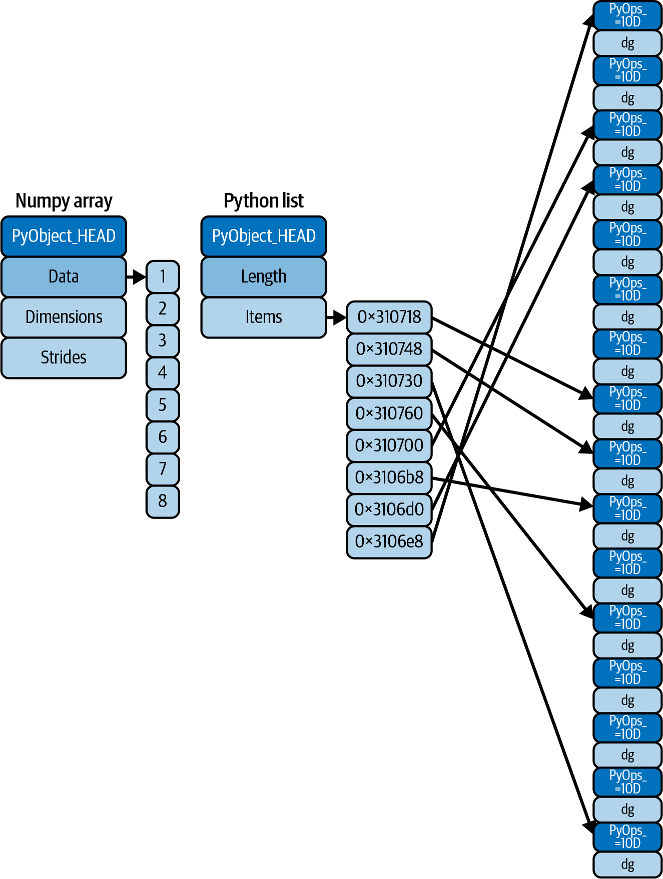
Fig. 3.2 Difference between NumPy array (C) and Python lists [Vanderplas, 2022]#
In short, NumPy’s primary data structure is the ndarray (N-dimensional array), which is a homogeneous, multidimensional array of fixed-size items. This means all elements within a ndarray must be of the same data type (note: To store heterogeneous data, NumPy uses structured arrays). While Python defines only one type of a particular data class (there is only one integer type, one floating-point type, etc.), there are 24 new fundamental Python types to describe different types of scalars in NumPy.
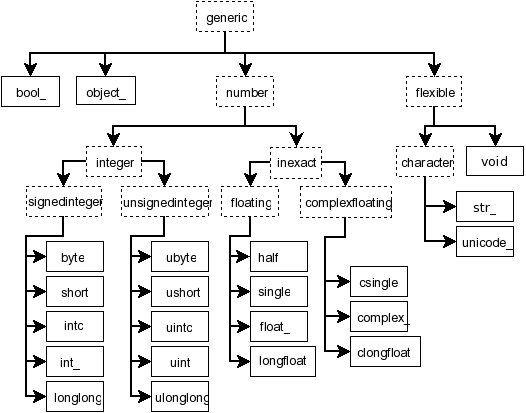
Fig. 3.3 Hierarchy of type objects representing the array data types (NumPy: Scalars)#
Compared some of the NumPy built-in types to Python built-in types:
Python type |
NumPy type |
Type name |
Type code |
|---|---|---|---|
|
|
|
|
|
|
|
|
|
|
|
|
|
|
|
|
|
|
variable-length |
|
|
|
|
|
|
|
variable-length |
|
(all others) |
|
|
|
3.1.3. Using NumPy#
3.1.3.1. Installing NumPy#
To install NumPy, you would:
Go to the command line
Navigate to your project directory (dsm)
Activate the virtual environment
Issue the
pip install [package]syntax to install:
pip install numpy
You should see the installation happens like:
(.venv) [username]@[computer]ː~/workspace/dsm$ pip install numpy
Collecting numpy
Downloading numpy-2.3.3-cp312-cp312-macosx_14_0_arm64.whl.metadata (62 kB)
━━━━━━━━━━━━━━━━━━━━━━━━━━━━━━━━━━━━━━━━ 62.1/62.1 kB 1.3 MB/s eta 0:00:00
Downloading numpy-2.3.3-cp312-cp312-macosx_14_0_arm64.whl (5.1 MB)
━━━━━━━━━━━━━━━━━━━━━━━━━━━━━━━━━━━━━━━━ 5.1/5.1 MB 4.1 MB/s eta 0:00:00
Installing collected packages: numpy
Successfully installed numpy-2.3.3
Note
Alternatively, in a Jupyter notebook, you may use the %pip install [package] syntax in a code cell to install packages just like pip install [package] in the command line. You will also see people use the older syntax !pip install, which runs pip as a shell command, while %pip is a Jupyter magic function that runs in the current notebook kernel, allowing you to customize your notebooks.
Don’t forget to comment out (#) your pip commands in the cells after installation, or they’ll run every time you run the cell.
3.1.3.2. import NumPy#
Once you’ve installed NumPy, you can import it as a library and give it an alias; conventionally we calle it np:
import numpy as np
Here, np is an alias for numpy, and the dot notation gives us access to the contained objects, such as array() in this case.
After you import the library, you use the dot operator to access the methods/functions and attributes inside the module/library. Just type the name of the object, and then the dot (.) and the Tab key to show the menu. You can scroll down to select the methods. In this case, we choose the array method (note: the Tab key can also do autocompletion).
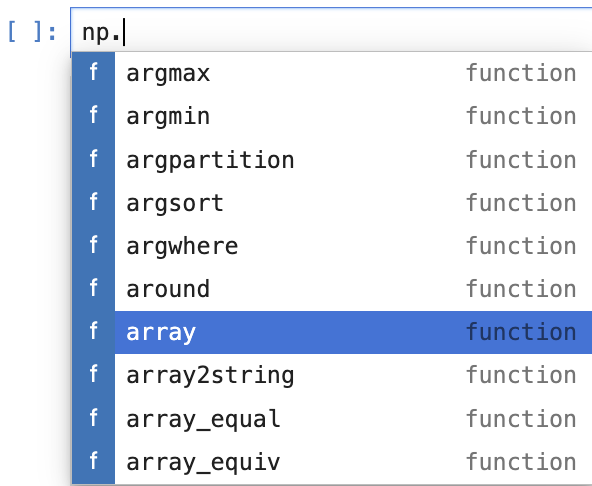
Fig. 3.4 Using the dot operator and Tab completion in NumPy#
3.1.3.3. Functions/Methods#
NumPy provides many functions for creating and operating on arrays. NumPy functions are called through the np namespace, such as np.array() and np.sum(). Many operations that act on an existing array are also available as array methods, called through the array object, such as arr.reshape() and arr.sum().
Array-creation routines such as np.array(), np.arange(), np.zeros(), and np.linspace() are naturally expressed as functions because they do not require an existing array. Other operations may be available as a function, a method, or both.
Category |
Function / Method |
Description |
Example |
|---|---|---|---|
Array Creation |
|
Create an array from array-like data |
|
|
Create evenly spaced values within an interval |
|
|
|
Create a specified number of evenly spaced values |
|
|
|
Create an array filled with zeros |
|
|
|
Create an array filled with ones |
|
|
|
Create a 2-D array with ones on the diagonal |
|
|
|
Create an array filled with a specified value |
|
|
Shape Operations |
|
Return an array with a new shape |
|
|
Return a flattened copy of an array |
|
|
|
Permute an array’s axes |
|
|
|
Join arrays along an existing axis |
|
|
|
Join arrays along a new axis |
|
|
Indexing / Selection |
|
Return indices satisfying a condition, or select values conditionally |
|
|
Return indices of nonzero elements |
|
|
|
Select values using multiple conditions |
|
|
Array Operations |
|
Sum array elements |
|
|
Sort array elements |
|
|
|
Return indices that would sort an array |
|
|
|
Return the unique values in an array |
|
|
Random Numbers |
|
Create a random number generator |
|
|
Generate random values uniformly distributed over |
|
|
|
Generate values from the standard normal distribution |
|
|
|
Generate random integers |
|
|
|
Randomly select values from an array |
|
Note
You may encounter older NumPy code that uses functions such as np.random.rand(), np.random.randn(), and np.random.randint(). New code generally uses a random number generator created with np.random.default_rng().
3.1.4. Creating NumPy Arrays#
3.1.4.1. array([sequence])#
You can create an array by directly converting a list to an array. Let us create a list first:
num_list = [1,2,3, 4, 5]
print("num_list: ", num_list)
print("num_list type:", type(num_list))
num_list:  [1, 2, 3, 4, 5]
num_list type: <class 'list'>
Now let’s convert the list into a numpy array using numpy’s array() function to create a 1-D array.
arr = np.array(num_list)       ### casting a list to a numpy array
arr
array([1, 2, 3, 4, 5])
Now let’s create a 2-D (rows and columns) array using a 2-D tuple:
arr_2d = np.array(
    (
        [1,2,3],
        [4,5,6],
        [7,8,9]
    )
)
arr_2d
array([[1, 2, 3],
       [4, 5, 6],
       [7, 8, 9]])
An example of Python 3-D list, which is a list of lists:
list_of_list = [
    [
        [1, 2, 3],
        [2, 2, 3],
    ],
    [
        [3, 2, 3],
        [4, 2, 3]
    ],
    [
        [5, 2, 3],
        [6, 2, 3]
    ]
]
list_of_list
[[[1, 2, 3], [2, 2, 3]], [[3, 2, 3], [4, 2, 3]], [[5, 2, 3], [6, 2, 3]]]
Compare the output of the Python list above with the NumPy array created from the list:
np.array(list_of_list)
array([[[1, 2, 3],
        [2, 2, 3]],

       [[3, 2, 3],
        [4, 2, 3]],

       [[5, 2, 3],
        [6, 2, 3]]])
We can check the data type of the arrays to see they are truely arrays:
print(type(arr))
print(type(arr_2d))
<class 'numpy.ndarray'>
<class 'numpy.ndarray'>
### 1 Exercise: Create a 3-D NumPy array from the following
### list of lists and print its type and shape:
import numpy as np
data_3d = [
    [[1, 2], [3, 4]],
    [[5, 6], [7, 8]],
    [[9, 10], [11, 12]]
]
### Your code starts here:


### Your code ends here.
<class 'numpy.ndarray'>
(3, 2, 2)
3.1.4.2. The arange() Function#
numpy.arange() is a NumPy function used to create arrays with evenly spaced values with a specified interval. It is similar to Python’s built-in range() function, but returns a NumPy ndarray instead of a range object, which is more efficient for numerical operations.
np.arange(5)
array([0, 1, 2, 3, 4])
Using the range parameters: start, stop exclusive, step:
np.arange(5, 21, 2)
array([ 5, 7, 9, 11, 13, 15, 17, 19])
### 2 Exercise: Create an array of values from 10 to 50 with a step of
### 5 using `arange()`. What is the length of the resulting array?
### Produce the same output as the cell below.
### Your code starts here:


### Your code ends here.
[10 15 20 25 30 35 40 45 50]
9
### Solution
odd_squares = np.array([x**2 for x in range(1, 20, 2)])
print("Array:", odd_squares)
Array: [ 1 9 25 49 81 121 169 225 289 361]
3.1.4.3. Other np Functions:#
zeros( ):
np.zeros(shape, dtype=float, order='C')ones( ):
np.ones(shape, dtype=float, order='C')full( ): create an array filled with a certain value
np.full(shape, fill_value, dtype=None, order='C')linspace( ):
np.linspace(start, stop, num=50 default, endpoint=True, retstep=False, dtype=None, axis=0)eye( ):
np.eye(N, M=None, k=0, dtype=float, order='C')
3.1.4.3.1. zeros(), ones(), and full()#
These functions initialize arrays of a specified shape filled with zeros, ones, or a constant value, respectively. The syntax for numpy.ones(), zeros(), and full() functions is:
numpy.ones(shape, dtype=None, order=’C’, *, like=None)
Note that we pass the shape argument using a list or a tuple or list.
### zero() function creates an array filled with zeros.
### You can specify the shape and data type of the array.

np.zeros((3, 4))     ### passing shape parameter with a tuple
                     ### by default, the dtype is float64
array([[0., 0., 0., 0.],
       [0., 0., 0., 0.],
       [0., 0., 0., 0.]])
np.zeros(5, dtype=int) ### passing shape parameter with an integer
array([0, 0, 0, 0, 0])
### one() function creates an array filled with ones.

arr_ones = np.ones(3)   ### vector array of 1's
arr_ones                ### type float64 by default
array([1., 1., 1.])
arr_ones.dtype
dtype('float64')
arr_ints = np.ones([2,3], int)     ### specify dtype to int

print(arr_ints)

print()

print(type(arr_ints))   ### check the type of arr_ints using the built-in type() function
print(arr_ints.dtype)   ### check the np data type of arr_ints using the built-in dtype attribute
[[1 1 1]
 [1 1 1]]

<class 'numpy.ndarray'>
int64
##### 3 Exercise: Create a 1-D NumPy array of length 5 filled with the
##### value 5 using the `full()` function. What is the data type of the

np.full( (5) , 5)
array([5, 5, 5, 5, 5])
np.full((2, 3), 5) ### fill the shape (2x3) with 5
array([[5, 5, 5],
       [5, 5, 5]])
3.1.4.3.2. linspace()#
linspace( ) stands for linear space. linspace returns evenly spaced numbers over a specified interval. linspace() takes three main arguments: the start value, the stop value, and the number of elements to generate. Note that the stop parameter is inclusive.
### Create an array of five values evenly spaced between 0 and 1

np.linspace(0, 10, 5, dtype=int)
array([ 0, 2, 5, 7, 10])
arr = np.linspace(0, 26, 27, dtype=int)

print(arr)
[ 0  1  2  3  4  5  6  7  8  9 10 11 12 13 14 15 16 17 18 19 20 21 22 23
 24 25 26]
3.1.4.3.3. eye()#
An identity matrix is a square matrix with 1s on the main diagonal and 0s everywhere else. It plays the same role in matrix multiplication that the number 1 plays in ordinary multiplication.
To creates an identity matrix:
np.eye(4)
array([[1., 0., 0., 0.],
       [0., 1., 0., 0.],
       [0., 0., 1., 0.],
       [0., 0., 0., 1.]])
3.1.4.4. reshape()#
The reshape() function changes the shape of a NumPy array without altering its underlying data. It returns a new array (or a view of the original array if possible) with the specified new shape.
arr = np.linspace(0, 26, 27, dtype=int)
print(arr)
arr.reshape(3, 9)
print(arr)
[ 0  1  2  3  4  5  6  7  8  9 10 11 12 13 14 15 16 17 18 19 20 21 22 23
 24 25 26]
[ 0  1  2  3  4  5  6  7  8  9 10 11 12 13 14 15 16 17 18 19 20 21 22 23
 24 25 26]
### arr
arr = np.array(
    [num for num in range(16)]
)

arr
array([ 0, 1, 2, 3, 4, 5, 6, 7, 8, 9, 10, 11, 12, 13, 14, 15])
### np.array([list comprehension])
arr_25 = np.array([ num for num in range(25)])
arr_25
array([ 0,  1,  2,  3,  4,  5,  6,  7,  8,  9, 10, 11, 12, 13, 14, 15, 16,
       17, 18, 19, 20, 21, 22, 23, 24])
### reshape
arr = arr.reshape(4, 4)
arr
array([[ 0,  1,  2,  3],
       [ 4,  5,  6,  7],
       [ 8,  9, 10, 11],
       [12, 13, 14, 15]])
arr.reshape(2, 8)
array([[ 0,  1,  2,  3,  4,  5,  6,  7],
       [ 8,  9, 10, 11, 12, 13, 14, 15]])
### this will not work

# arr.reshape(5,5)  ### ValueError: cannot reshape array of size 16 into shape (5,5)
arr_25 = np.arange(25)  ### create an array of 25 values from 0 to 24
arr_25.reshape(5, 5)    ### reshape it to 5 rows and 5 columns
array([[ 0,  1,  2,  3,  4],
       [ 5,  6,  7,  8,  9],
       [10, 11, 12, 13, 14],
       [15, 16, 17, 18, 19],
       [20, 21, 22, 23, 24]])
arr_25.reshape(5, 5).shape ### check the shape of the reshaped array
(5, 5)
### reshape does not change the original object

arr_25
array([ 0,  1,  2,  3,  4,  5,  6,  7,  8,  9, 10, 11, 12, 13, 14, 15, 16,
       17, 18, 19, 20, 21, 22, 23, 24])
arr_25.shape ### check the shape of the original array
(25,)
### 4 Exercise: Create an array with 24 elements using `np.arange()`.
### Reshape it into a 4x6 array, then reshape it again into a 2x12 array.
### Print the shape after each reshape operation.
### Your code starts here:


### Your code ends here.
Original shape: (24,)
4x6 shape: (4, 6)
2x12 shape: (2, 12)
### Solution
arr = np.arange(24)
print("Original shape:", arr.shape)

arr_4x6 = arr.reshape(4, 6)
print("After first reshape (4, 6):", arr_4x6.shape)

arr_2x12 = arr_4x6.reshape(2, 12)
print("After second reshape (2, 12):", arr_2x12.shape)
print("\nFinal array:\n", arr_2x12)
Original shape: (24,)
After first reshape (4, 6): (4, 6)
After second reshape (2, 12): (2, 12)

Final array:
 [[ 0  1  2  3  4  5  6  7  8  9 10 11]
 [12 13 14 15 16 17 18 19 20 21 22 23]]
3.1.5. Array Attributes#
Commonly used NumPy array attributes include:
dtype: shows data type of elements (e.g., float64, int32, complex128)ndim: shows number of dimensions (rank)shape: shows a tuple of lengths per axis (assignable to reshape if sizes match)size: shows the total number of elements in the arrayitemsize: shows the size in bytes of each element
nbytes: shows the total memory (in bytes) the array occupies (size × itemsize)T: returns the transposed array (an attribute, not a method — no parentheses needed)
3.1.5.1. dtype#
The dtype property in NumPy is an attribute of a NumPy array (ndarray) that displays the data type of its elements. You can get the data type of the object in the array.
Note that in the example below, i4 means a 4-byte signed integer (int32). Because 4 = 4 bytes, 4 bytes × 8 bits = 32 bits.
arr = np.array([1, 2, 3, 4], dtype='i4')

print(arr)
print(arr.dtype)
[1 2 3 4]
int32
### without specifying the dtype, NumPy will infer the data type
### based on the input values. In this case, it will default to `int64` on most systems.

arr = np.array([1, 2, 3, 4])
print(arr)
print(arr.dtype)
[1 2 3 4]
int64
### Create an array with a specific data type

np.array([1, 2, 3, 4], dtype=np.float32)
array([1., 2., 3., 4.], dtype=float32)
Common dtype options:
int, int32, int64           # integer types
float, float32, float64     # floating-point types
complex, complex64          # complex numbers
bool                        # boolean
str, 'U10'                  # string (U10 = Unicode string, max 10 chars)
num1 = np.arange(5, dtype=int)        # [0 1 2 3 4] as integers
num2 = np.arange(5, dtype=float)      # [0. 1. 2. 3. 4.] as floats
num3 = np.zeros(5, dtype=int)         # [0 0 0 0 0]
num4 = np.ones((3, 4), dtype=float)   # 3x4 array of 1.0s

print(num1.dtype)
print(num2.dtype)
print(num3.dtype)
print(num4.dtype)

print('\n',num1)
print(num2)
print(num3)
print(num4)
int64
float64
int64
float64

 [0 1 2 3 4]
[0. 1. 2. 3. 4.]
[0 0 0 0 0]
[[1. 1. 1. 1.]
 [1. 1. 1. 1.]
 [1. 1. 1. 1.]]
3.1.5.1.1. Understanding String Dtypes#
When NumPy creates an array of strings, it automatically determines the data type based on the longest string in the array. The notation <U6 means:
U= Unicode string6= Maximum length of 6 characters
For example, if you create an array with the strings 'apple', 'banana', and 'cherry', the longest string is 6 characters, so the dtype becomes <U6. This ensures all strings fit within the allocated space.
arr_string1 = np.array(['apple', 'banana', 'cherry'])
arr_string2 = np.array(['apple', 'banana', 'cherry', 'date', 'elderberry'])

print(arr_string1.dtype)   ### U means UTF8, 6 is the longest string
print(arr_string2.dtype)
print("\n'U6' means: Unicode string with maximum length of 6 characters (cherry)")
<U6
<U10

'U6' means: Unicode string with maximum length of 6 characters (cherry)
3.1.5.2. ndim#
The ndim attribute represents the number of dimensions (or axes) of the array.
arr = np.arange(1, 6)
print(arr)
arr.ndim
[1 2 3 4 5]
1
arr_25 = np.arange(25)
arr_55 = arr_25.reshape(5, 5)
arr_55.ndim
2
### Use arrange to create arrays of different
### dimensions and check their ndim attribute:
# - Create a 1-D array with 5 elements
# - Create a 2-D array with shape (3, 4)
# - Create a 3-D array with shape (2, 3, 2)
# - Print the ndim for each array
### Your code starts here:


### Your code ends here.
1-D ndim: 1
2-D ndim: 2
3-D ndim: 3
3.1.5.3. shape#
The shape attribute returns a tuple of integers at every index tells about the number of elements the corresponding dimension has.
arr_2d = np.array([ [1, 2, 3], [4, 5, 6] ])
arr_2d.shape
(2, 3)
### np.arange creating a 1-D array

arr_vec = np.arange(1, 10, 2)
print("the vector:", arr_vec)
print("the shape:", arr_vec.shape)
the vector: [1 3 5 7 9]
the shape: (5,)
arr_25 = np.arange(25)
arr_25.shape
(25,)
### 11 Exercise: Examine the shape attribute of different arrays:
### - Create a 1-D array with 10 elements and print its shape
### - Create a 2-D array with 3 rows and 5 columns, print its shape
### - Reshape a 1-D array of 20 elements into a 4x5 array and print the shape before and after
### - What does the trailing comma in (10,) mean?
### Your code starts here: (use the space on the right when needed)


### Your code ends here.
### Solution
# 1-D array
arr_1d = np.arange(10)
print("1-D array shape:", arr_1d.shape)

# 2-D array
arr_2d = np.arange(15).reshape(3, 5)
print("2-D array shape:", arr_2d.shape)

# Reshape example
arr_original = np.arange(20)
print("Before reshape - shape:", arr_original.shape)

arr_reshaped = arr_original.reshape(4, 5)
print("After reshape - shape:", arr_reshaped.shape)

print("Note: The trailing comma in (10,) indicates it's a 1-D array (tuple with one element)")
1-D array shape: (10,)
2-D array shape: (3, 5)
Before reshape - shape: (20,)
After reshape - shape: (4, 5)
Note: The trailing comma in (10,) indicates it's a 1-D array (tuple with one element)
3.1.5.4. size#
The size attribute returns the total number of elements in an array. For a 2-D array, this is the number of rows times the number of columns.
arr_2d = np.array([[1, 2, 3],
                   [4, 5, 6]])

print("shape:", arr_2d.shape)
print("size:", arr_2d.size)
shape: (2, 3)
size: 6
3.1.6. Indexing and Selection#
Just like Python lists, square brackets [ ] are used for selecting the elements or groups of elements from an array:
Accessing individual elements of a list (indexing).
Selecting sub-sequences (slicing with parameters: start, stop exclusive, and step). Note that slicing returns a numpy array.
Negative indexing: begins with -1 from the end of the sequence.
arr = np.arange(0,10)   ### creating sample array
arr             ### evaluate the array to display its contents
                ### array([0, 1, 2, 3, 4, 5, 6, 7, 8, 9])
array([0, 1, 2, 3, 4, 5, 6, 7, 8, 9])
print(arr) ### better looking of array output
[0 1 2 3 4 5 6 7 8 9]
print("Shape:", arr.shape)  ### shape of the array
print("Dim  :", arr.ndim)   ### dimension of the array
Shape: (10,)
Dim  : 1
print(arr[1])               ### indexing
print(arr[0:3])             ### slicing
print(arr[0:5:2])           ### slicing with step size
print(arr[-1])              ### negative indexing
print(arr[-3:-1])           ### slicing with negative indices
1
[0 1 2]
[0 2 4]
9
[7 8]
### Exercise: Create an array from 0 to 9 using `np.arange()`.
### Then perform the following operations:
### - Get the element at index 5
### - Get elements from index 2 to 6 (exclusive)
### - Get every second element starting from index 1
### - Get the last 3 elements using negative indexing
### Your code starts here:


### Your code ends here.
### Solution
arr = np.arange(0, 10)

print("Element at index 5:", arr[5])
print("Elements from index 2 to 6:", arr[2:6])
print("Every second element from index 1:", arr[1::2])
print("Last 3 elements:", arr[-3:])
Element at index 5: 5
Elements from index 2 to 6: [2 3 4 5]
Every second element from index 1: [1 3 5 7 9]
Last 3 elements: [7 8 9]
3.1.6.1. Indexing/Slicing 2-D Arrays#
To access a 2-D array (matrices), use the syntax array[row_index, column_index]. The general format is arr[row][col] or arr[row, col].
### creating a 2-d array

arr_2d = np.array(([5,10,15],[20,25,30],[35,40,45]))
arr_2d
array([[ 5, 10, 15],
       [20, 25, 30],
       [35, 40, 45]])
### 0-based indexing; 1st row. It will return the first row of the
### 2D array, which is [5, 10, 15].
arr_2d[0]
array([ 5, 10, 15])
### 0-based indexing; 2nd row, 3rd column. It will return the
### element at the second row and third column of the 2D array, which is 30.
arr_2d[1, 2]
np.int64(30)
### 2D array slicing
### shape (2,2) from top right corner

arr_2d[:2, 1:]
array([[10, 15],
       [25, 30]])
### 8 Exercise: Create a 3x4 2-D array containing the values 1 through 12. Then:
### - Extract the first and last rows
### - Extract the middle two columns
### - Extract a 2x2 subarray from the center of the matrix
### Your code starts here:


### Your code ends here.
First and last rows:
[[ 1  2  3  4]
 [ 9 10 11 12]]
Middle two columns:
[[ 2  3]
 [ 6  7]
 [10 11]]
Center 2x2 subarray:
[[2 3]
 [6 7]]
3.1.7. Summary#
This section covered the fundamental concepts of NumPy arrays. Below is a reference guide for the key concepts introduced above.
3.1.7.1. Array Creation#
np.array(): Convert lists/tuples to arraysnp.arange(): Create arrays with evenly spaced valuesnp.linspace(): Create arrays with specified number of elementsnp.zeros(),np.ones(): Create arrays filled with 0s or 1snp.eye(): Create identity matricesnp.full(): Fill arrays with a specific value
import numpy as np

a = np.array([1, 2, 3])
z = np.zeros((2, 3))
o = np.ones((3, 2))
f = np.full((2, 2), 7)
r = np.arange(0, 10, 2)
l = np.linspace(0, 1, 5)
i = np.eye(3)
3.1.7.2. Array Attributes#
Attribute |
Description |
Example |
|---|---|---|
|
Dimensions of array (returns tuple) |
|
|
Data type of elements |
|
|
Number of dimensions |
|
a.shape
a.ndim
a.dtype
3.1.7.3. Indexing Patterns#
1-D arrays:
arr = np.array([10, 20, 30, 40, 50])
arr[0]          # → 10 (first element)
arr[-1]         # → 50 (last element)
arr[1:4]        # → [20, 30, 40] (slice, stop exclusive)
arr[::2]        # → [10, 30, 50] (every 2nd element)
2-D arrays:
arr_2d = np.array([[1, 2, 3], [4, 5, 6], [7, 8, 9]])
arr_2d[0]       # → [1, 2, 3] (first row)
arr_2d[1, 2]    # → 6 (row 1, column 2)
arr_2d[:2, 1:]  # → [[2, 3], [5, 6]] (subarray)
arr_2d[:, 0]    # → [1, 4, 7] (first column)
3.1.7.4. Reshaping#
arr = np.arange(12)
arr.reshape(3, 4)    # Reshape to 3x4 (returns new view/array)
arr.shape            # Still (12,) - reshape doesn't modify original
arr_reshaped = arr.reshape(3, 4)  # Assign to see changes
3.1.7.5. Common Functions Summary#
Creation:
array(),arange(),linspace(),zeros(),ones(),eye(),full()Reshaping:
reshape(),transpose(),concatenate()Selection:
where(),nonzero(),select()Operations:
sum(),mean(),std(),min(),max(),sort()Math:
abs(),round(),clip(),sqrt(),exp()
3.1.7.6. Data Types#
np.array([1, 2, 3], dtype='int32')       # 32-bit integer
np.array([1, 2, 3], dtype='float64')     # 64-bit float
np.array([1, 2, 3], dtype='complex128')  # Complex number
np.array(['a', 'b'], dtype='U5')         # Unicode string (max 5 chars)
Note
A few related tools you’ll meet soon: size and nbytes (memory usage), astype() (converting dtype), flatten()/ravel() (collapsing to 1-D), .T/transpose() (flipping axes), boolean indexing (arr[arr > 2]), fancy indexing (arr[[0, 1], [1, 0]]), and broadcasting (arr + 5). These build directly on the attributes and indexing covered here, and are introduced with worked examples in the sections ahead.