
6.2. Figures and Axes#
6.2.1. Object-Oriented Plotting with plt.subplots()#
Note
But what’s the difference between a figure and an axes?
Figure |
Axes |
|
|---|---|---|
Analogy |
The full canvas/window |
One plot region on that canvas |
What it is |
The top-level container |
The area where data is drawn |
Contains |
One or more Axes |
X/Y axis, ticks, lines, labels, title, legend |
Commonly created by |
|
returned by |
A good mental model is:
Figure
└── Axes (a.k.a. one plot)
    ├── XAxis
    ├── YAxis
    ├── Title
    ├── Lines / Bars / etc.
    └── Legend
Here we will learn two OO workflows:
plt.subplots()for the standard, everyday workflowplt.figure()+fig.add_axes()for manual placement and inset-style layouts
6.2.1.1. plt.subplots()#
plt.subplots() creates the figure and axes objects in one step and returns them as a tuple.
If you create a single subplot, you typically get one
Axesobject.If you create multiple subplots, you get a NumPy array of
Axesobjects.
Typical syntax:
fig, ax = plt.subplots()
The example below shows the standard one-axes case.
month = np.arange(1, 7)                               ### months 1 to 6 (Jan to Jun)
revenue = np.array([110, 104, 118, 121, 125, 119])    ### monthly revenue in $K

# fig, ax = plt.subplots()              ### single Axes case
# fig, axes = plt.subplots(1, 2)        ### multiple Axes case

fig, ax = plt.subplots(figsize=(4,3))   ### unpacking in one step
ax.plot(month, revenue, 'g--')          ### plot on that axes

### common axes methods
ax.set_xlabel('Month')
ax.set_ylabel('Revenue ($K)')
ax.set_title('Monthly Revenue')
plt.show()
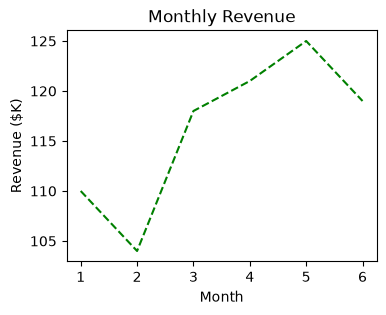
With subplots(), you can specify the number of rows and columns using the nrows= and ncols= parameters when creating the subplots() object. The example below creates an empty canvas of 1-row by 2-cols subplots.
fig, axes = plt.subplots(nrows=1, ncols=2, figsize=(6, 2))  ### similar to plt.subplot(1, 2, ith axes)
# fig, axes = plt.subplots(1, 2)            ### same as above
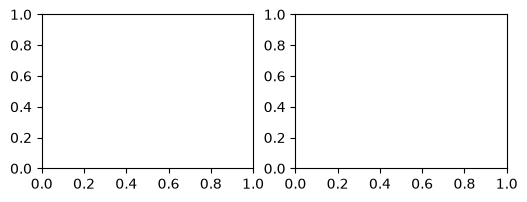
In this example above, axes is an array variable containing two Axes objects. Looping over that array is a common pattern when you want to apply the same formatting to each subplot.
print(axes)
[<Axes: > <Axes: >]
Now we have access over the two Axes individually using indexing ([0] and [1]). We may plot them separately. Plotting functions from pandas and Seaborn (Chapter 07) also accept an ax= argument, so you can draw their charts into one of these panels, for example df.plot(ax=axes[0]).
month = np.arange(1, 7)
store_a = np.array([62, 58, 66, 70, 73, 69])          ### monthly sales in $K
store_b = np.array([48, 51, 47, 55, 58, 60])

fig, axes = plt.subplots(nrows=1, ncols=2, figsize=(6, 2))

axes[0].plot(month, store_a, 'r--')    ### plot on the first axes
axes[0].set_title('Store A')           ### set title for the first axes

axes[1].plot(month, store_b, 'g*-')    ### plot on the second axes
axes[1].set_title('Store B')           ### set title for the second axes
plt.show()
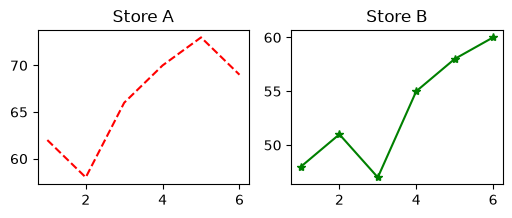
It’s not uncommon to loop through the Axes object then fine tune the plots. zip() pairs each axes with its data and title, so one loop formats both charts.
month = np.arange(1, 7)
store_a = np.array([62, 58, 66, 70, 73, 69])          ### monthly sales in $K
store_b = np.array([48, 51, 47, 55, 58, 60])

fig, axes = plt.subplots(nrows=1, ncols=2, figsize=(6, 2))

for ax, sales, name in zip(axes, [store_a, store_b], ['Store A', 'Store B']):
    ax.plot(month, sales, 'b')
    ax.set_xlabel('Month')
    ax.set_ylabel('Sales ($K)')
    ax.set_title(name)

plt.show()
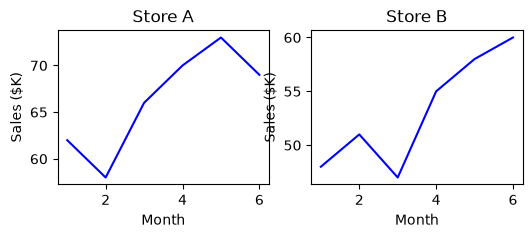
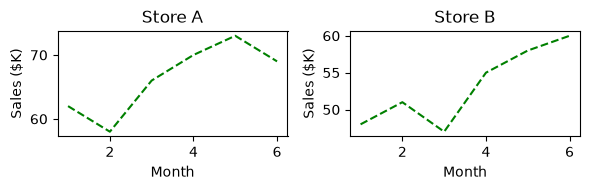
A common issue in Matplotlib is overlapping subplot labels or titles. plt.tight_layout() can automatically adjust spacing so the figure is easier to read. (compare with the plots above)
month = np.arange(1, 7)
store_a = np.array([62, 58, 66, 70, 73, 69])          ### monthly sales in $K
store_b = np.array([48, 51, 47, 55, 58, 60])

fig, axes = plt.subplots(nrows=1, ncols=2, figsize=(6, 2))

for ax, sales, name in zip(axes, [store_a, store_b], ['Store A', 'Store B']):
    ax.plot(month, sales, 'g--')
    ax.set_xlabel('Month')
    ax.set_ylabel('Sales ($K)')
    ax.set_title(name)

plt.tight_layout()                     ### fix overlapping labels and titles
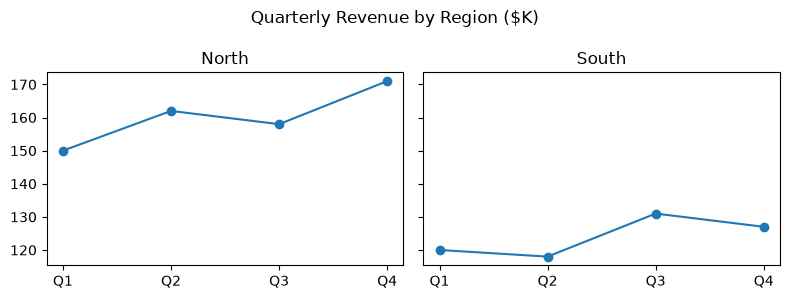
Each ax.set_title() names one axes. To give the whole figure one title, use fig.suptitle(), which places the title above all the subplots. This is common in dashboards, where several charts support one message. The x values here are quarter labels rather than numbers; Matplotlib places text labels along the axis in the order given. sharey=True gives every subplot the same y-axis range. Without it, each subplot scales to its own data, and a small region can look as large as a big one.
quarters = ["Q1", "Q2", "Q3", "Q4"]
north = [150, 162, 158, 171]
south = [120, 118, 131, 127]

fig, axes = plt.subplots(1, 2, figsize=(8, 3), sharey=True)   ### sharey: same y scale for a fair comparison

axes[0].plot(quarters, north, marker='o')
axes[0].set_title('North')

axes[1].plot(quarters, south, marker='o')
axes[1].set_title('South')

fig.suptitle('Quarterly Revenue by Region ($K)')   ### one title for the whole figure
plt.tight_layout()
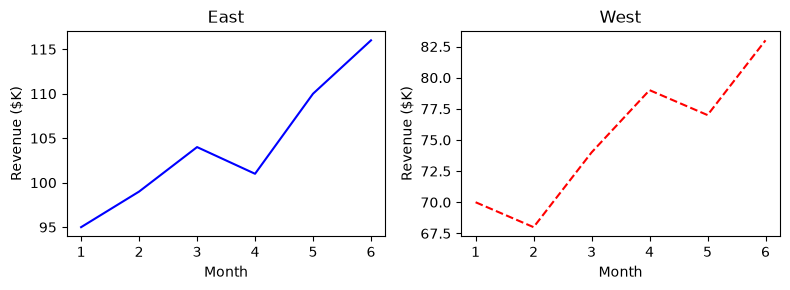
### Exercise: Side-by-Side Subplots with plt.subplots()
#   1. Create month = np.arange(1, 7),
#      east = np.array([95, 99, 104, 101, 110, 116]), and
#      west = np.array([70, 68, 74, 79, 77, 83]).
#   2. Use plt.subplots(1, 2, figsize=(8, 3)) to create a figure and two axes.
#   3. On axes[0], plot month vs east with 'b-', title "East",
#      x-label "Month", and y-label "Revenue ($K)".
#   4. On axes[1], plot month vs west with 'r--', title "West",
#      x-label "Month", and y-label "Revenue ($K)".
#   5. Call plt.tight_layout() at the end.
### Your code starts here.


### Your code ends here.
6.2.2. Manual Placement with add_axes()#
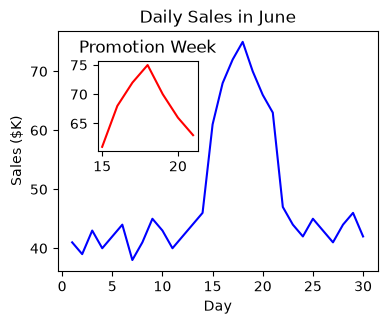
fig.add_axes() is a more manual OO technique than plt.subplots(). It is most useful when you want precise axes placement, such as inset plots or custom layouts.
The process of using add_axes() to create plots is:
Create a Figure object.
Add one or more Axes using normalized figure coordinates
[left, bottom, width, height].Plot and format each axes separately.
add_axes() uses normalized figure coordinates. For example, [0.1, 0.1, 0.8, 0.8] means:
left edge at 10% of the figure width
bottom edge at 10% of the figure height
axes width equal to 80% of the figure width
axes height equal to 80% of the figure height
fig = plt.figure(figsize=(4,3))             ### 1. create an empty figure
ax = fig.add_axes([0.1, 0.1, 0.8, 0.8])     ### 2. add one axes using normalized coordinates
While slightly more involved, add_axes() gives you precise control over where each axes sits in the figure. That makes it a good choice for inset plots and manually arranged layouts.
day = np.arange(1, 31)                  ### days in June
daily_sales = np.array([41, 39, 43, 40, 42, 44, 38, 41, 45, 43,
                        40, 42, 44, 46, 61, 68, 72, 75, 70, 66,
                        63, 47, 44, 42, 45, 43, 41, 44, 46, 42])   ### $K; promotion on days 15-21

fig = plt.figure(figsize=(4,3))         ### create empty canvas on the figure (object)

### add two axes to the figure
axes1 = fig.add_axes([0.1, 0.1, 0.8, 0.8])     ### main axes
axes2 = fig.add_axes([0.2, 0.5, 0.25, 0.3])    ### inset axes, over the flat early days

### main axes: the whole month
axes1.plot(day, daily_sales, 'b')
axes1.set_xlabel('Day')
axes1.set_ylabel('Sales ($K)')
axes1.set_title('Daily Sales in June')

### inset axes: zoom in on the promotion week
axes2.plot(day[14:21], daily_sales[14:21], 'r')
axes2.set_title('Promotion Week')
plt.show()
### Exercise: Figure with Main Plot and Inset using plt.figure()
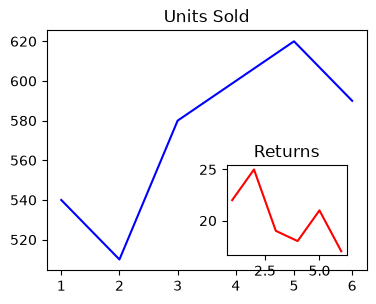
#   1. Create month = np.arange(1, 7),
#      units = np.array([540, 510, 580, 600, 620, 590]), and
#      returns = np.array([22, 25, 19, 18, 21, 17]).
#   2. Create a figure with figsize=(4, 3).
#   3. Add a main axes at [0.1, 0.1, 0.8, 0.8] and plot month vs units in blue.
#      Set the title to "Units Sold".
#   4. Add an inset axes at [0.55, 0.15, 0.3, 0.3] and plot month vs returns in red.
#      Set the title to "Returns".
### Your code starts here.


### Your code ends here.
6.2.3. Figure Size, Resolution, and Saving#
Three figure-level settings decide how a chart looks outside the notebook: its size in inches, its resolution in dots per inch, and the file it is saved to. These matter most when a chart goes into a report or slide deck.
6.2.3.1. figsize=#
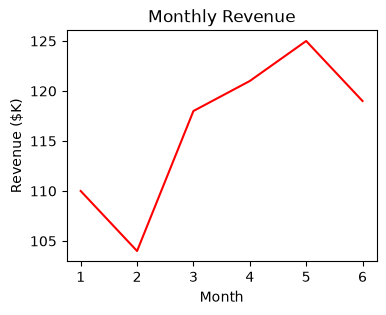
Figure size and DPI are two of the most common figure-level controls.
figsize=(width, height)uses inches.
This can be set with plt.figure(...) or plt.subplots(...).
month = np.arange(1, 7)                               ### months 1 to 6 (Jan to Jun)
revenue = np.array([110, 104, 118, 121, 125, 119])    ### monthly revenue in $K

fig, axes = plt.subplots(figsize=(4,3))

### peripherals for the axes object
axes.plot(month, revenue, 'r')
axes.set_xlabel('Month')
axes.set_ylabel('Revenue ($K)')
axes.set_title('Monthly Revenue')
plt.show()
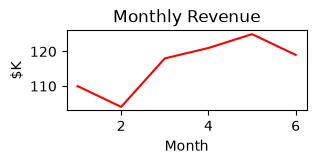
6.2.3.2. DPI#
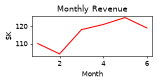
dpisets dots per inch, which affects rendered resolution.
month = np.arange(1, 7)                               ### months 1 to 6 (Jan to Jun)
revenue = np.array([110, 104, 118, 121, 125, 119])    ### monthly revenue in $K

fig = plt.figure(figsize=(3,1), dpi=50)          ### low resolution
axes = fig.add_axes([0.1, 0.1, 0.8, 0.8])
axes.plot(month, revenue, 'r')
axes.set_xlabel('Month')
axes.set_ylabel('$K')
axes.set_title('Monthly Revenue')
plt.show()
month = np.arange(1, 7)                               ### months 1 to 6 (Jan to Jun)
revenue = np.array([110, 104, 118, 121, 125, 119])    ### monthly revenue in $K

fig = plt.figure(figsize=(3,1), dpi=100)         ### same size, twice the resolution
axes = fig.add_axes([0.1, 0.1, 0.8, 0.8])
axes.plot(month, revenue, 'r')
axes.set_xlabel('Month')
axes.set_ylabel('$K')
axes.set_title('Monthly Revenue')
plt.show()
### Exercise: Setting Figure Size and DPI
#   1. Create month = np.arange(1, 7) and
#      revenue = np.array([110, 104, 118, 121, 125, 119]).
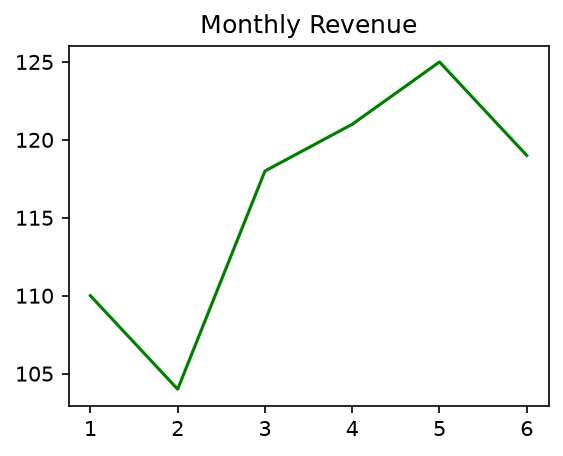
#   2. Create a figure with figsize=(4, 3) and dpi=150.
#   3. Add axes using fig.add_axes([0.1, 0.1, 0.8, 0.8]).
#   4. Plot month vs revenue with a green line.
#   5. Set the title to "Monthly Revenue".
### Your code starts here.


### Your code ends here.
6.2.3.3. Saving Figures#
Matplotlib can save high-quality output in formats such as PNG, JPG, SVG, and PDF.
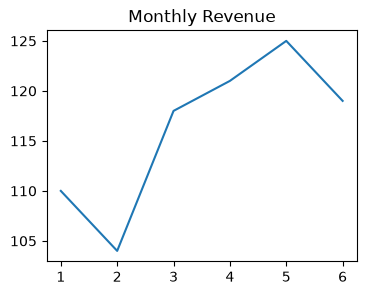
Use the figure’s .savefig() method. The file type follows the extension, such as .png, .pdf, or .svg. Use dpi= to set the resolution of the saved file: the default is about 100 dots per inch, which looks fine on screen, while 200 to 300 is typical for printed reports. In the example below, we create a small figure explicitly before saving it:
import os
output_dir = '../../_build/generated'
os.makedirs(output_dir, exist_ok=True)
output_file = os.path.join(output_dir, 'monthly_revenue.png')

month = np.arange(1, 7)                               ### months 1 to 6 (Jan to Jun)
revenue = np.array([110, 104, 118, 121, 125, 119])    ### monthly revenue in $K

fig, ax = plt.subplots(figsize=(4, 3))
ax.plot(month, revenue)
ax.set_title('Monthly Revenue')

fig.savefig(output_file, dpi=200)     ### dpi= sets the resolution of the saved file
print(f"Saved: {output_file}")
Saved: ../../_build/generated/monthly_revenue.png
### Exercise: Save a Chart for a Report
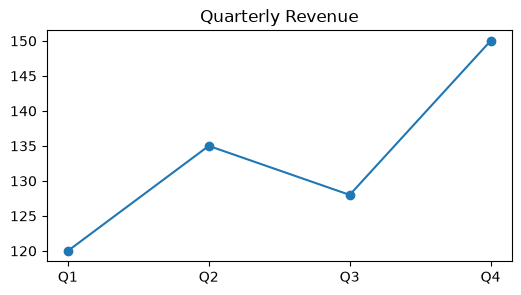
#   1. Create quarters = ["Q1", "Q2", "Q3", "Q4"] and revenue = [120, 135, 128, 150].
#   2. Use fig, ax = plt.subplots(figsize=(6, 3)) and plot quarters vs revenue
#      with circle markers (marker='o').
#   3. Set the title "Quarterly Revenue".
#   4. Save the figure as "quarterly_revenue.png" with dpi=150.
### Your code starts here.


### Your code ends here.
6.2.4. Summary#
A figure is the whole canvas; an axes is one chart on it. Most formatting is done with axes methods such as
ax.set_title(),ax.set_xlabel(), andax.set_ylabel().fig, ax = plt.subplots()creates one chart.fig, axes = plt.subplots(nrows, ncols)returns an array of axes that you can index (axes[0]) or loop over withzip().plt.tight_layout()fixes overlapping labels,fig.suptitle()titles the whole figure, andsharey=Trueputs subplots on the same scale so they compare fairly.fig.add_axes([left, bottom, width, height])places an axes by fractions of the figure, which is how inset charts are made.figsize=sets size in inches anddpi=sets resolution.fig.savefig("file.png", dpi=200)saves a chart for a report; the file extension sets the format.
6.2.5. Further Reading#
Arranging multiple Axes in a Figure: grids, shared axes, and more layout options than
plt.subplots().Figure.add_axes: the full reference for manual axes placement.Figure.savefig: file formats, resolution, transparent backgrounds, and cropping options.