
6.4.2. Lab#
Use this assignment to practice the chapter’s concepts and coding skills in runnable Python code.
Sign in from the account menu before you start working on the assignment.
Write and run your code directly in the coding cells.
Multiple submissions are allowed. The highest score is kept.
### Question 1: Revenue Trend
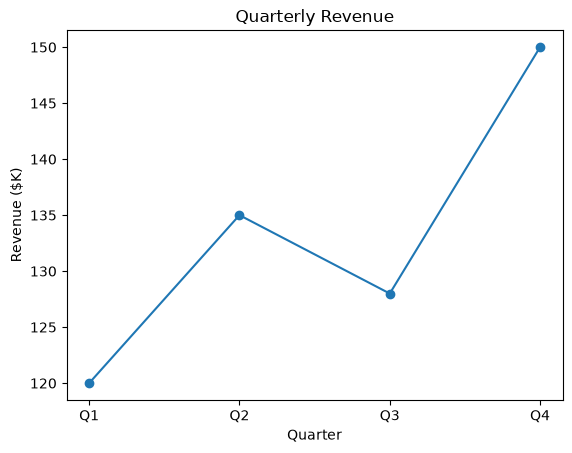
# A store manager wants to see how revenue moved across the year.
#   1. Create a figure and axes with plt.subplots().
#   2. Plot quarters vs revenue as a line with circle markers (marker='o').
#   3. Set the title "Quarterly Revenue", the x-label "Quarter",
#      and the y-label "Revenue ($K)".
import matplotlib.pyplot as plt

quarters = ["Q1", "Q2", "Q3", "Q4"]
revenue = [120, 135, 128, 150]
### Your code starts here.


### Your code ends here.
### Question 2: Actual vs Forecast
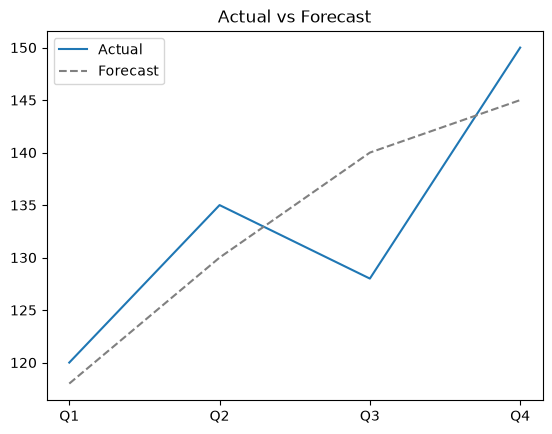
# Finance wants actual revenue compared with the forecast on one chart.
#   1. Create a figure and axes with plt.subplots().
#   2. Plot actual as a solid line with the label "Actual".
#   3. Plot forecast as a dashed gray line (ls='--', color='gray')
#      with the label "Forecast".
#   4. Set the title "Actual vs Forecast" and show the legend.
import matplotlib.pyplot as plt

quarters = ["Q1", "Q2", "Q3", "Q4"]
actual = [120, 135, 128, 150]
forecast = [118, 130, 140, 145]
### Your code starts here.


### Your code ends here.
### Question 3: Regional Dashboard
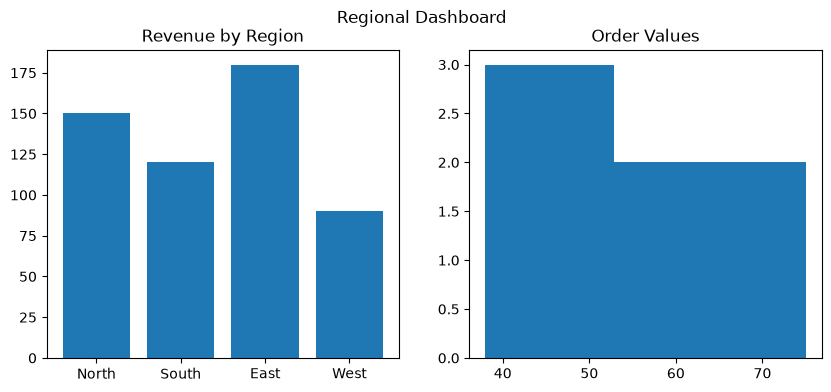
# A regional director wants two views side by side.
#   1. Create one row of two axes: fig, axes = plt.subplots(1, 2, figsize=(10, 4)).
#   2. On axes[0], draw a bar chart of regions vs region_revenue
#      with the title "Revenue by Region".
#   3. On axes[1], draw a histogram of order_values with bins=5
#      and the title "Order Values".
#   4. Add the figure title "Regional Dashboard" with fig.suptitle().
import matplotlib.pyplot as plt

regions = ["North", "South", "East", "West"]
region_revenue = [150, 120, 180, 90]
order_values = [45, 52, 38, 61, 75, 49, 58, 66, 40, 55, 70, 48]
### Your code starts here.


### Your code ends here.
### Question 4: Ad Spend and Sales
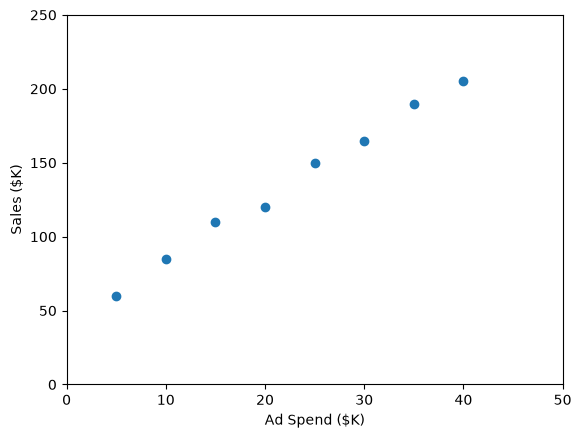
# Marketing asks whether higher ad spend goes with higher sales.
#   1. Create a figure and axes with plt.subplots().
#   2. Draw a scatter plot of ad_spend (x) vs sales (y).
#   3. Label the axes "Ad Spend ($K)" and "Sales ($K)".
#   4. Start both axes at zero: x from 0 to 50 and y from 0 to 250
#      using set_xlim() and set_ylim().
import matplotlib.pyplot as plt

ad_spend = [5, 10, 15, 20, 25, 30, 35, 40]
sales = [60, 85, 110, 120, 150, 165, 190, 205]
### Your code starts here.


### Your code ends here.
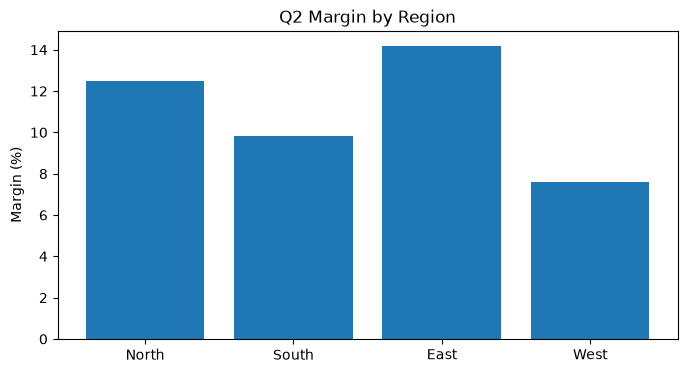
### Question 5: Report-Ready Figure
# The margin chart goes into a printed quarterly report.
#   1. Create a figure and axes with plt.subplots(figsize=(8, 4)).
#   2. Draw a bar chart of regions vs margin_pct.
#   3. Set the title "Q2 Margin by Region" and the y-label "Margin (%)".
#   4. Save the figure as "regional_margin_q2.png" with dpi=200.
import matplotlib.pyplot as plt

regions = ["North", "South", "East", "West"]
margin_pct = [12.5, 9.8, 14.2, 7.6]
### Your code starts here.


### Your code ends here.
Question 1
Question 2
Question 3
Question 4
Question 5