7.3. Faceting, Multivariate Views, and Style#
Core learning path
First, use displot(), relplot(), and catplot() to compare groups in separate panels. Then practice reading multivariate charts and choosing readable colors, labels, and sizes. You do not need to memorize every plotting function to answer a business question.
Focus |
What to practice |
|---|---|
Faceting |
Choose a grouping column and compare panels using consistent axes and bins. |
Multivariate reading |
Read pair-plot panels and explain the direction of relationships in a heatmap. |
Readability |
Use category colors, numerical color scales, labels, and marker sizes deliberately. |
Optional extensions |
Construct |
The optional extensions below provide extra practice after you are comfortable with the core path. Assignment instructions still specify the tasks to complete.
Recommended classroom practice
Use the exercises below as the core practice path for this section. Additional practice reinforces the same skills; optional extensions explore more advanced tools. These labels guide your study and classroom work. Follow your instructor’s directions and the separate Lab and Homework instructions for assigned work.
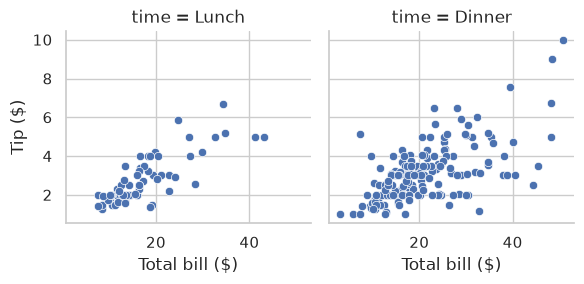
Compare Meal Times with Facets.
Read Two Pair-Plot Panels.
Read a Correlation Heatmap.
7.3.1. Figure-Level Wrappers and Faceting#
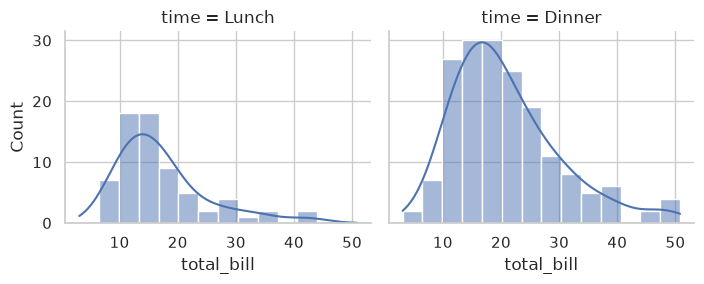
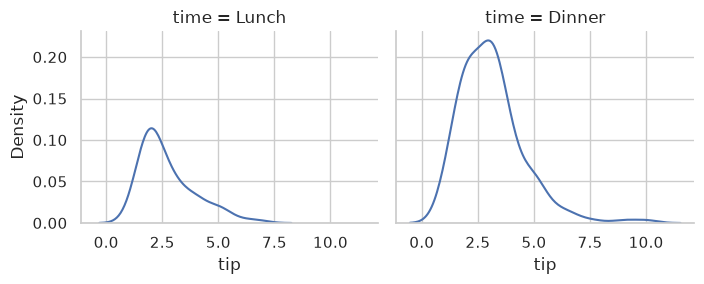
Compare the same question across panels. Read the facet labels first: each identifies the observations included in that panel. Then check whether the axes and histogram bins are consistent before comparing heights, slopes, or spreads. A panel with more points or taller count bars may simply contain more observations. Empty space can reflect few observations; it does not establish that a combination is impossible.
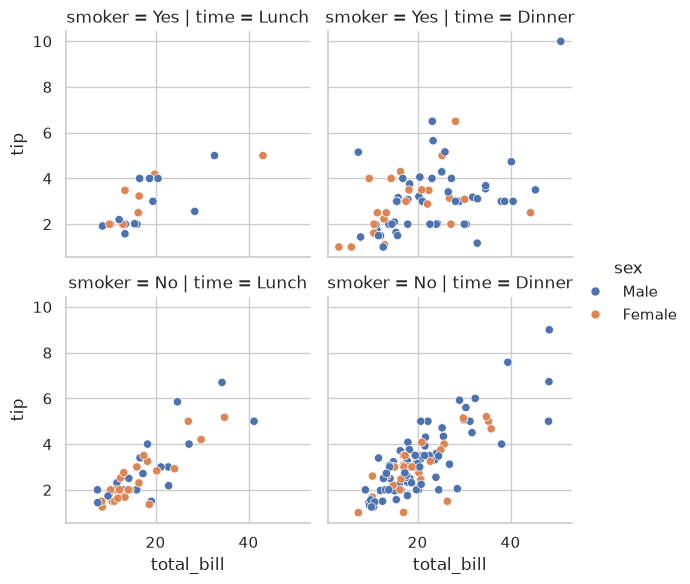
For the restaurant examples, ask whether the bill-tip relationship looks similar at lunch and dinner, then consider how party size and the number of recorded bills could affect the comparison. These panels describe this sample; they do not isolate the causal effect of meal time.
These wrappers make small-multiple comparisons much easier (row=, col=, hue=, height=, aspect=).
7.3.1.1. displot()#
The col= is set to time, meaning lunch and dinner. So we get two plots automatically.
tips.head(3)
| total_bill | tip | sex | smoker | day | time | size | |
|---|---|---|---|---|---|---|---|
| 0 | 16.99 | 1.01 | Female | No | Sun | Dinner | 2 |
| 1 | 10.34 | 1.66 | Male | No | Sun | Dinner | 3 |
| 2 | 21.01 | 3.50 | Male | No | Sun | Dinner | 3 |
sns.displot(data=tips, x='total_bill', col='time', kde=True, height=3, aspect=1.2)
<seaborn.axisgrid.FacetGrid at 0x7f8a7492fb60>
sns.displot(data=tips, kind='kde', x='tip', col='time', height=3, aspect=1.2)
<seaborn.axisgrid.FacetGrid at 0x7f8a23d89bd0>
7.3.1.2. relplot()#
relplot() is a figure-level Seaborn function for relational data.
Parameter |
Value |
Effect |
|---|---|---|
|
|
Uses scatter plots |
|
|
Axes in each panel |
|
|
Point color encodes sex |
|
|
Separate columns for Lunch / Dinner |
|
|
Separate rows for Yes / No smoker |
|
|
Each facet is about 3×3 inches |
sns.relplot(
    data=tips,
    x='total_bill', y='tip',
    hue='sex', col='time', row='smoker',
    kind='scatter', height=3, aspect=1
)
<seaborn.axisgrid.FacetGrid at 0x7f8a23c8b390>
### Exercise: Compare Meal Times with Facets
# Practice path: Core classroom practice.
# A manager wants to compare the relationship between bill amount and tip amount
# at lunch and dinner without overlapping the two groups in one panel.
# 1. Use sns.relplot() to draw total_bill on x and tip on y from tips.
# 2. Put Lunch and Dinner in separate column panels using the time variable.
# 3. Use scatter plots and keep the same x and y scales across both panels.
# 4. Label the axes 'Total bill ($)' and 'Tip ($)'.
# 5. In comments, describe the direction of the relationship in each panel.
#    Do the two meals show broadly similar or different directions?
# 6. Explain why consistent axes help this comparison and why more dinner points
#    would not, by itself, mean that dinner customers leave larger tips.
### Your code starts here.


### Your code ends here.
7.3.1.3. catplot()#
catplot() is the figure-level wrapper for categorical comparisons. Its kind= selects a chart type, such as 'box', 'bar', or 'count', while row= and col= divide the observations into panels. Use it when you want the same categorical comparison repeated across groups; use an axes-level function such as boxplot() when you want to place the chart on an axes you created yourself.
A manager asks: “How do bill distributions differ by day and recorded sex group, separately at lunch and dinner?” The example below answers that question with box plots rather than mean bars, keeping information about typical bill amounts and their spread.
Argument |
What it controls in this example |
|---|---|
|
Day categories within each panel. |
|
Bill amount in dollars. |
|
Separate colored boxes for the recorded sex groups within each day. |
|
Separate Lunch and Dinner panels. |
|
Medians, quartiles, whiskers, and potential outliers. |
|
Each panel is about three inches tall and three inches wide. |
Notice the distinction between hue and col: color separates groups within a panel; faceting places groups in separate panels. Each box summarizes multiple bills, so a box is not one customer or one bill.
cat = sns.catplot(
    data=tips,
    x='day', y='total_bill', hue='sex', col='time',
    kind='box', height=3, aspect=1
)

type(cat)
seaborn.axisgrid.FacetGrid
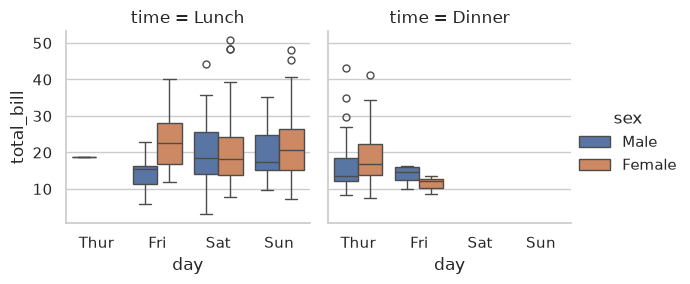
Read the boxes within each panel. Begin with the Lunch panel: choose a day and compare the median lines and box heights for its available groups. Repeat in Dinner, then compare across meals using the same vertical scale. A higher median describes a larger typical bill; a taller box indicates more variability in the middle half of that group’s observations.
Some combinations contain few observations or none. An absent box means no observations for that combination in this dataset; a collapsed box can result from very few or repeated values. Neither justifies a broad conclusion about all restaurant customers. Check group counts before treating apparent differences as dependable.
The variable cat stores the returned FacetGrid, not a single axes. type(cat) above confirms that return type. You can use methods such as cat.set_axis_labels('Day', 'Total bill ($)') to update labels across the grid. You do not need to construct a FacetGrid directly for this standard comparison; that optional technique follows next.
7.3.2. FacetGrid#
Note
Optional extension: construct a grid directly. For ordinary group comparisons, use displot(), relplot(), or catplot() from the preceding examples. Read this section when you need custom plotting functions or several layers within each panel.
FacetGrid is a return type and a standalone class by itself and can be used to create a FacetGrid directly.
After creating the FacetGrid, you use the map() function to pass plotting functions to it.
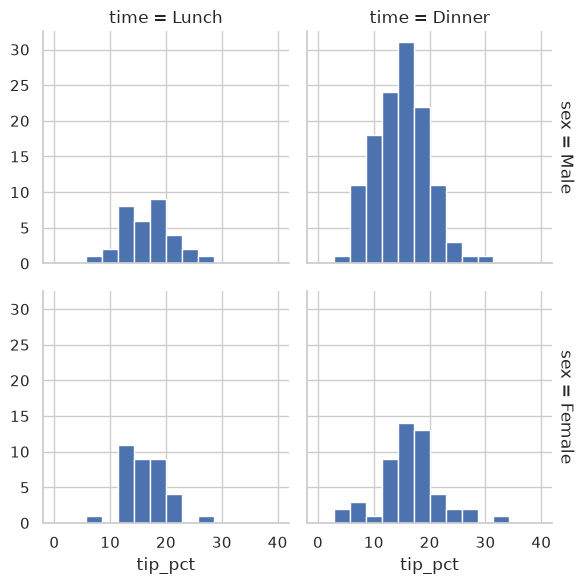
tips['tip_pct'] = 100 * tips['tip'] / tips['total_bill']

grid = sns.FacetGrid(data=tips, row='sex', col='time', margin_titles=True)
grid.map(plt.hist, 'tip_pct', bins=np.linspace(0, 40, 15))
<seaborn.axisgrid.FacetGrid at 0x7f8a20890b90>
When to use FacetGrid vs. figure-level functions:
Use FacetGrid when you need:
Custom functions beyond Seaborn’s built-in plots
Multi-step plot construction (e.g.,
grid.map()multiple times)Fine control over individual facets
For standard faceting, displot(), relplot(), and catplot() are simpler and recommended.
### Exercise: Faceted Tip Percentage Histograms
# Practice path: Optional extension.
# A manager wants to compare tip percentages for smoker and non-smoker tables,
# separately at lunch and dinner.
# 1. Calculate tips['tip_pct'] as 100 * tip / total_bill.
# 2. Draw a grid of histograms with row='smoker' and col='time'.
#    Use the same bin edges from 0 to 40 percent in every panel.
# 3. Print the observation count for each smoker/time group.
# 4. Count and print observations outside the displayed range for each group.
# 5. In comments, describe where the visible values are concentrated within each
#    meal period. Do not report an exact median from the histogram alone.
# 6. Explain why different bar heights may reflect different group sizes,
#    and why omitted observations matter when comparing variability.
### Your code starts here.


### Your code ends here.
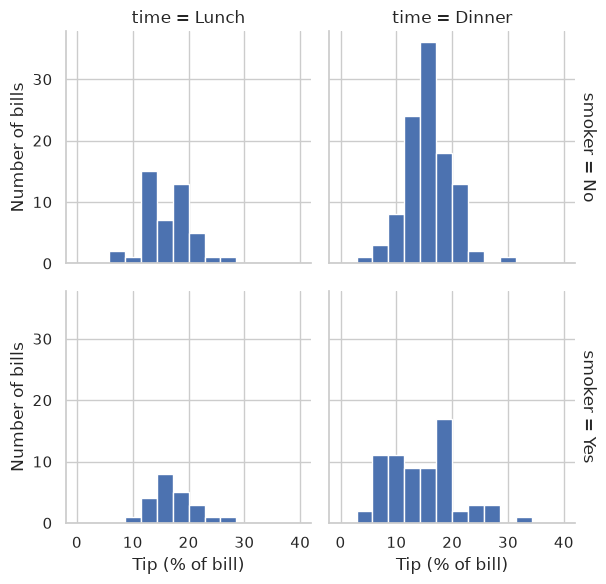
               bills  omitted
smoker time
Yes    Lunch      23        0
       Dinner     70        2
No     Lunch      45        0
       Dinner    106        0
7.3.3. Multivariate Views#
These plots help you inspect relationships among multiple variables at once.
7.3.3.1. Pair Plots#
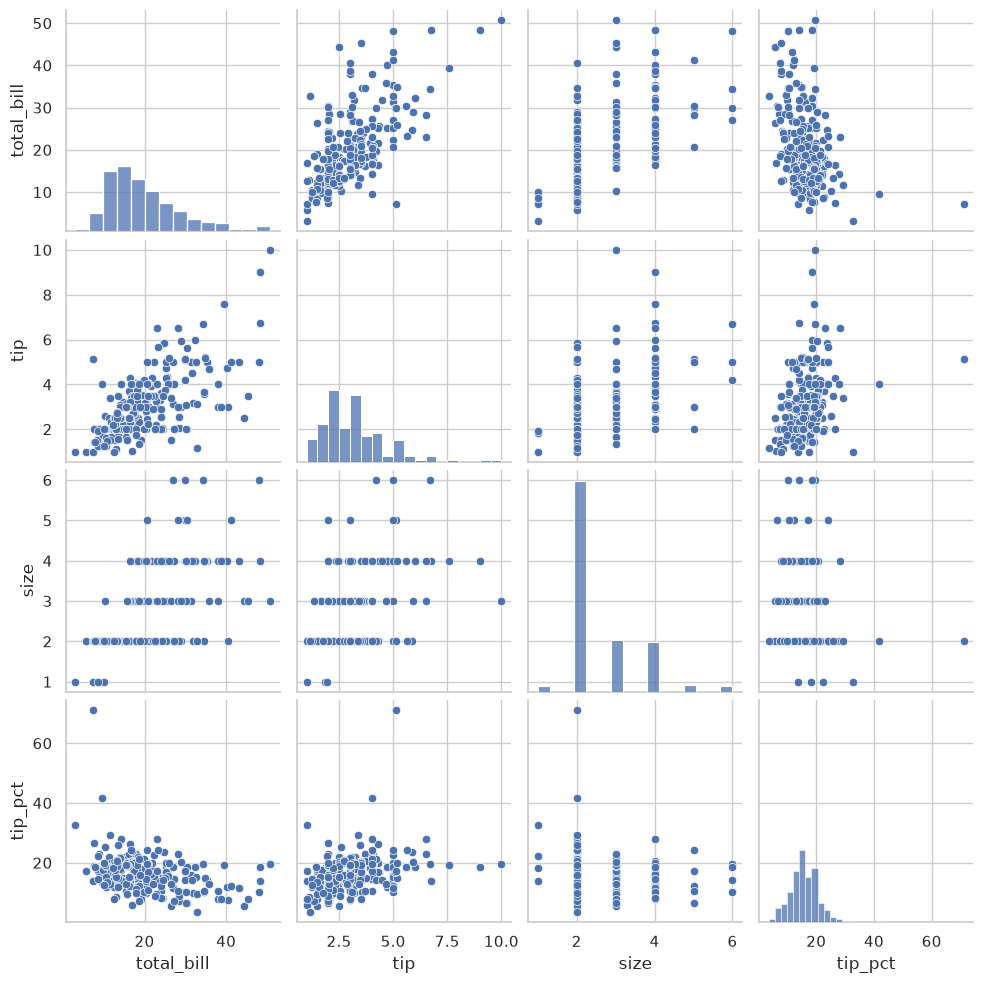
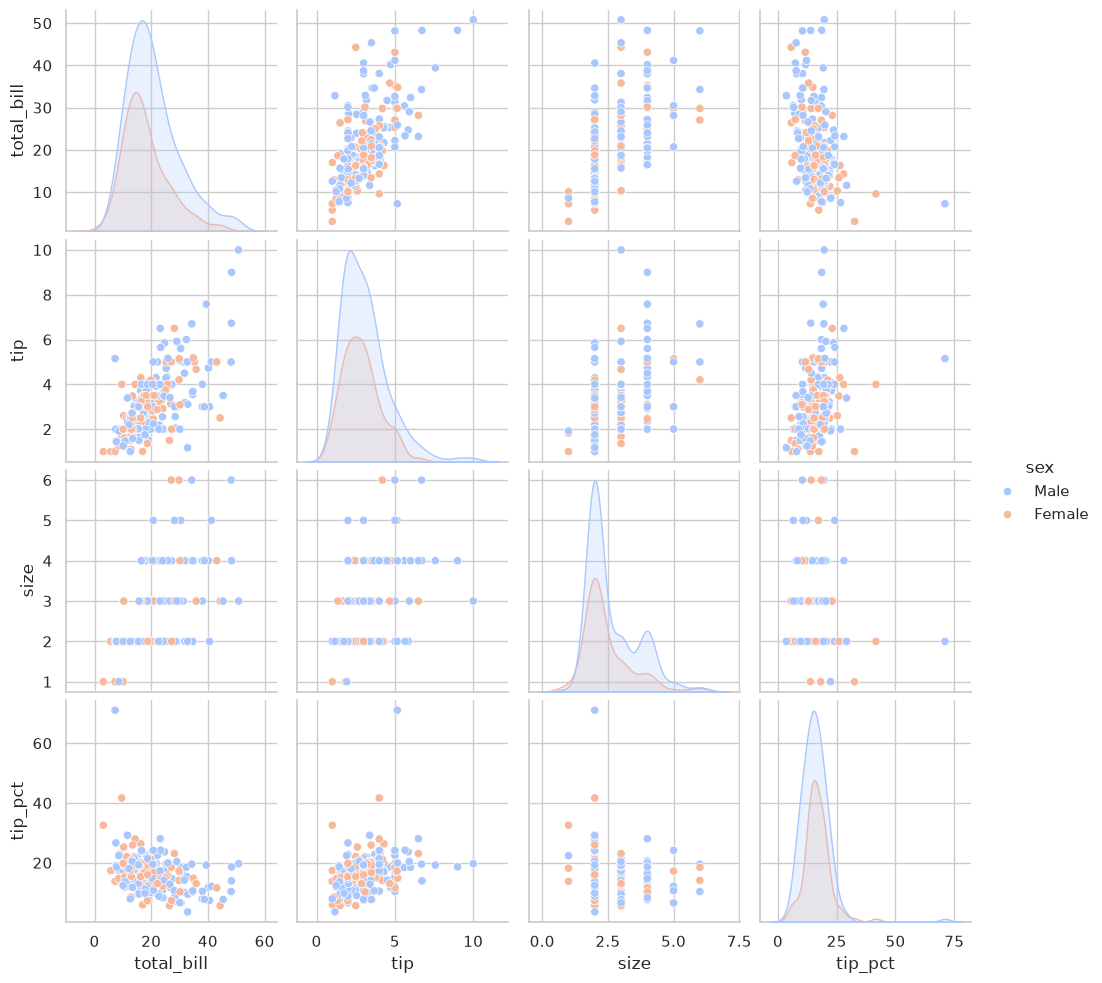
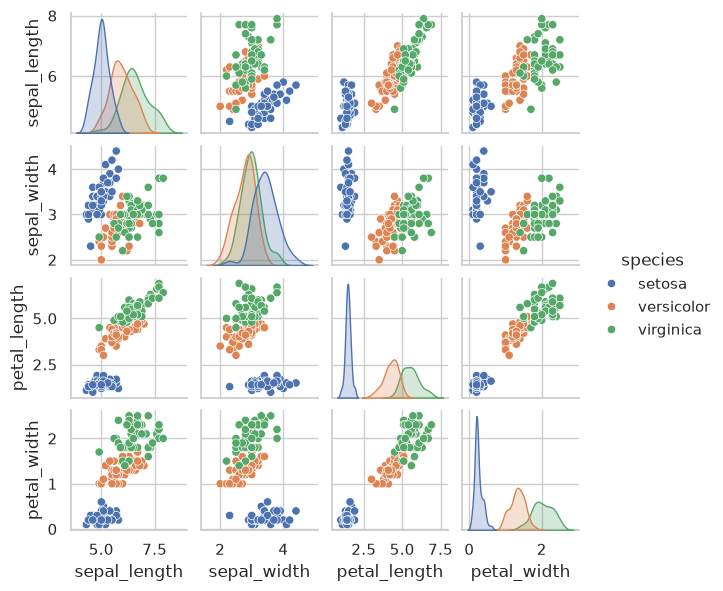
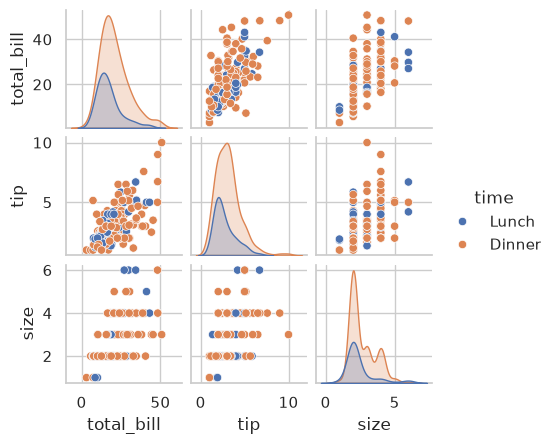
For the core path, focus on reading the grid: each off-diagonal panel compares the variables named on its axes, and each diagonal panel shows one variable’s distribution. You can return to making larger grids after you are comfortable explaining a single scatter plot.
Choose one off-diagonal panel and read its x- and y-axis labels before describing the direction, spread, and unusual observations. The opposite triangle repeats the same variable pairs with their axes swapped, so it does not provide independent evidence. On the diagonal, compare where each group’s distribution lies and how broadly it spreads. A taller density peak alone does not mean higher values or more customers.
A pair plot helps you find questions worth examining with a focused chart. Avoid drawing a management conclusion from a busy grid without checking the relevant observations and group sizes.
sns.pairplot(tips)
<seaborn.axisgrid.PairGrid at 0x7f8a7492fcb0>
sns.pairplot(tips, hue='sex', palette='coolwarm')
<seaborn.axisgrid.PairGrid at 0x7f8a7490df90>
sns.pairplot(iris, hue='species', height=1.5)
<seaborn.axisgrid.PairGrid at 0x7f8a260dd950>
### Exercise: Read Two Pair-Plot Panels
# Practice path: Core classroom practice.
# A manager wants to inspect bill amounts, tips, and party sizes by meal time.
# 1. Make a pair plot of total_bill, tip, and size from tips, colored by time.
#    Keep each panel about 1.5 inches tall.
# 2. Locate the panel with total_bill on x and tip on y. In comments, describe
#    the direction of association for Lunch and Dinner and whether the groups overlap.
# 3. Locate the total_bill diagonal panel. Describe where the distributions lie
#    and whether a broad range of bill amounts occurs in both groups.
# 4. Explain why a taller density peak alone does not show more customers or
#    larger typical bills. Do not infer exact medians or counts from the curves.
# 5. Choose one pattern to examine next with a simpler chart, and explain why.
### Your code starts here.


### Your code ends here.
7.3.3.2. Joint Plots#
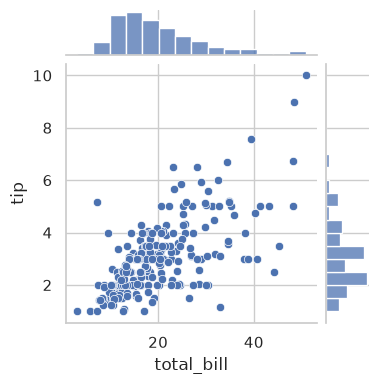
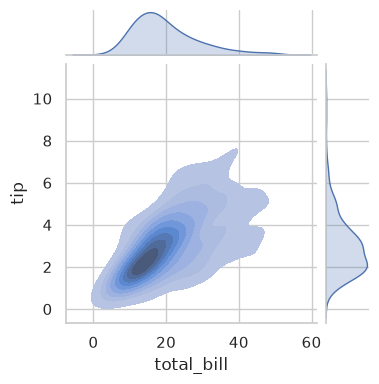
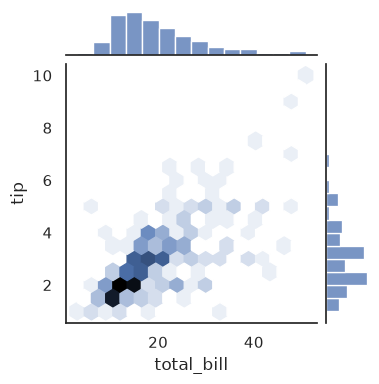
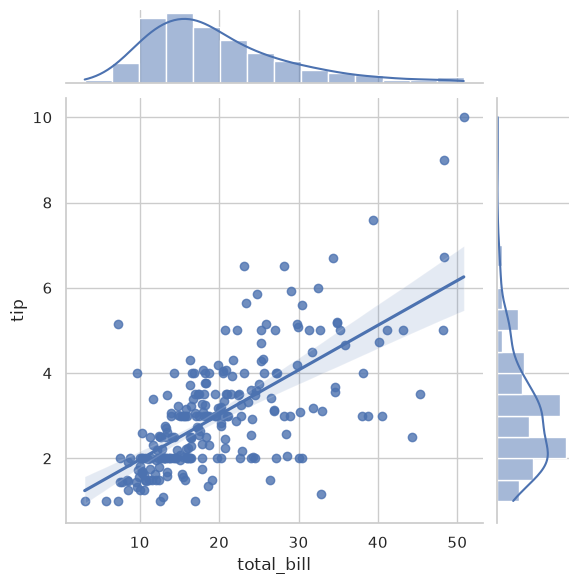
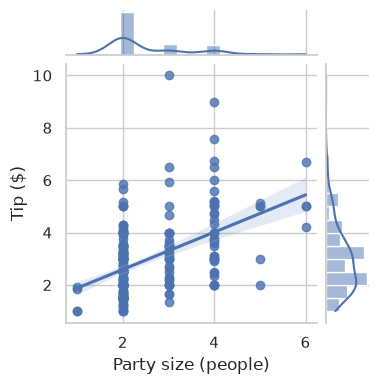
A joint plot shows the relationship between two numeric columns in the middle and each column’s distribution along the edges. With kind='reg', it also draws a fitted straight line with a shaded band: read the line as the general direction of the relationship (larger bills, larger tips). The line is a regression line and the band is a confidence interval for it; Chapter 12 explains both.
Note
Optional extension: combine a relationship with its marginal distributions. Start by identifying the central plot and the distributions along its edges. The KDE, hexagonal-bin, and regression variants are additional views to explore; you do not need to reproduce all of them for a basic group comparison.
Read the center and margins together. Each point in the central scatter plot represents one paired observation. The top margin summarizes the x variable, and the right margin summarizes the y variable. The margins show each variable separately; they cannot tell you how the two variables are paired.
With kind='reg', the fitted line summarizes the relationship, and the confidence band concerns uncertainty in the fitted mean response. It is not a band that must contain every individual observation. Look at how widely points lie around the line, and avoid interpreting the slope as a causal effect.
### you may be tempted to do this, but it won't work because sns.jointplot creates its own figure and axes
# fig, ax = plt.subplots(1, 2, figsize=(8, 3))
# sns.jointplot(data=tips, x='total_bill', y='tip', kind='scatter', ax=ax[0])
# sns.jointplot(data=tips, x='total_bill', y='tip', kind='kde', fill=True, ax=ax[1])
###

sns.jointplot(data=tips, x='total_bill', y='tip', kind='scatter', height=4)
sns.jointplot(data=tips, x='total_bill', y='tip', kind='kde', fill=True, height=4)
<seaborn.axisgrid.JointGrid at 0x7f8a17bf5310>
with sns.axes_style('white'):
    sns.jointplot(data=tips, kind='hex', x='total_bill', y='tip', height=4)
sns.jointplot(x='total_bill', y='tip', data=tips, kind='reg')
<seaborn.axisgrid.JointGrid at 0x7f8a23def820>
### Exercise: Read a Joint Plot
# Practice path: Optional extension.
# A manager wants to inspect how party size and tip amount relate in this sample.
# 1. Use sns.jointplot() with size on x, tip on y, and kind='reg'.
# 2. In comments, describe the direction of the fitted line. Do all tips follow it?
# 3. Explain what the top and right marginal plots summarize.
# 4. Can the separate marginal plots tell you the tip left by a particular party?
# 5. Explain why the shaded confidence band is not a range containing every tip,
#    and why the association does not establish what adding a person would cause.
# You do not need to calculate a slope or compare numerical relationship strengths.
### Your code starts here.


### Your code ends here.
7.3.3.3. Heatmap (Common EDA Pattern)#
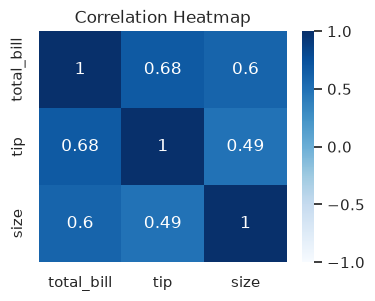
Heatmaps are useful for compact matrix-style summaries, such as correlation matrices. Each number below is a correlation between -1 and 1: values near 1 mean two columns tend to rise together, and values near 0 mean little straight-line relationship. Chapter 12 explains correlation.
Read the labels, number, and color together. Choose a row variable and a column variable, then read their intersection. Positive correlation means larger values tend to accompany larger values; negative correlation means larger values tend to accompany smaller values. A value near zero indicates little linear association, but a curved relationship can still exist.
Each variable has correlation 1 with itself along the diagonal. The two halves of a correlation matrix repeat the same pairs, so compare distinct variables rather than selecting a diagonal entry as the strongest relationship. Correlation has no units and ranges from -1 to 1; it does not establish causation.
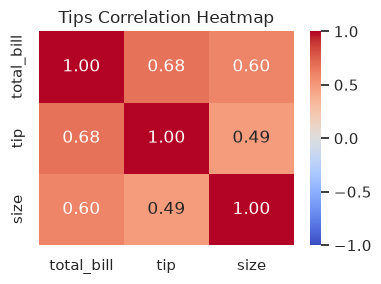
Use a diverging color scale centered at zero when comparing negative and positive correlations. The introductory Blues example shows the mechanics of a heatmap; the following exercise uses coolwarm centered at zero so the signs are visually distinct. Check the sample size, missing values, and possible unusual observations before relying on a correlation for a decision.
corr = tips[['total_bill', 'tip', 'size']].corr(numeric_only=True)

fig, ax = plt.subplots(figsize=(4, 3))
sns.heatmap(corr, annot=True, cmap='Blues', vmin=-1, vmax=1, ax=ax)
ax.set_title('Correlation Heatmap')
Text(0.5, 1.0, 'Correlation Heatmap')
### Exercise: Read a Correlation Heatmap
# Practice path: Core classroom practice.
# A manager wants to inspect associations among bill amounts, tips, and party sizes.
# 1. Compute a correlation matrix for total_bill, tip, and size from tips.
# 2. Draw a heatmap with the numerical values displayed, using a diverging color
#    scale centered at zero and fixed limits from -1 to 1.
# 3. Title it 'Tips Correlation Heatmap'.
# 4. In comments, identify the strongest association between two different variables.
#    State its direction and explain what it means in this sample.
# 5. Explain why diagonal values of 1 do not answer the manager's question,
#    and why correlation does not establish that changing one variable causes another to change.
### Your code starts here.


### Your code ends here.
Note
Optional extension: tip percentage and bill amount. Calculate tip_pct = 100 * tip / total_bill, then inspect its association with total_bill. Interpret this comparison carefully: bill amount is also the denominator of tip percentage, so the two measures share a mathematical component. For a fixed dollar tip, increasing the bill necessarily lowers the percentage.
A negative correlation alone therefore does not establish that customers become less generous as bills grow. Inspect the underlying dollar amounts and percentages together and consider other factors before drawing a behavioral conclusion.
7.3.4. Themes and Global Style#
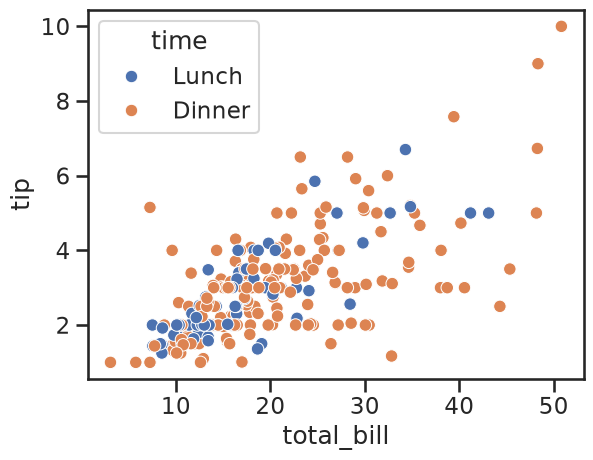
Seaborn theme settings apply globally in the notebook and help keep plots visually consistent.
sns.set_theme(style='ticks', context='talk', palette='deep')
sns.scatterplot(data=tips, x='total_bill', y='tip', hue='time')
<Axes: xlabel='total_bill', ylabel='tip'>
# Reset to a moderate default for the rest of your work
sns.set_theme(style='whitegrid', context='notebook')
Inspect the attributes of the palettes module (this is not a list of palette names):
print(dir(sns.palettes))
['MPL_QUAL_PALS', 'QUAL_PALETTES', 'QUAL_PALETTE_SIZES', 'SEABORN_PALETTES', '_ColorPalette', '__all__', '__builtins__', '__cached__', '__doc__', '__file__', '__loader__', '__name__', '__package__', '__spec__', '_color_to_rgb', '_parse_cubehelix_args', '_patch_colormap_display', 'blend_palette', 'color_palette', 'colorsys', 'crayon_palette', 'crayons', 'cubehelix_palette', 'cycle', 'dark_palette', 'desaturate', 'diverging_palette', 'get_color_cycle', 'get_colormap', 'hls_palette', 'husl', 'husl_palette', 'light_palette', 'mpl', 'mpl_palette', 'np', 'set_color_codes', 'xkcd_palette', 'xkcd_rgb']
The commonly used built-in options are:
Qualitative (good for categories)
'deep', 'muted', 'pastel', 'bright', 'dark', 'colorblind'
Sequential
'Blues', 'Greens', 'Reds', 'Oranges', 'Purples', 'Greys'
Diverging
'coolwarm', 'RdBu', 'BrBG', 'PiYG'
Perceptually uniform
'viridis', 'plasma', 'magma', 'inferno', 'cividis'
Preview a named palette, or draw its colors as a swatch:
# See a single palette
sns.color_palette('deep')
# sns.color_palette('muted')
# Draw a swatch for a named category palette.
sns.palplot(sns.color_palette('colorblind'))
plt.show()

# Or use matplotlib's colormaps too
import matplotlib.pyplot as plt
plt.colormaps()  # lists all matplotlib-compatible names
['magma',
 'inferno',
 'plasma',
 'viridis',
 'cividis',
 'twilight',
 'twilight_shifted',
 'turbo',
 'berlin',
 'managua',
 'vanimo',
 'Blues',
 'BrBG',
 'BuGn',
 'BuPu',
 'CMRmap',
 'GnBu',
 'Greens',
 'Greys',
 'OrRd',
 'Oranges',
 'PRGn',
 'PiYG',
 'PuBu',
 'PuBuGn',
 'PuOr',
 'PuRd',
 'Purples',
 'RdBu',
 'RdGy',
 'RdPu',
 'RdYlBu',
 'RdYlGn',
 'Reds',
 'Spectral',
 'Wistia',
 'YlGn',
 'YlGnBu',
 'YlOrBr',
 'YlOrRd',
 'afmhot',
 'autumn',
 'binary',
 'bone',
 'brg',
 'bwr',
 'cool',
 'coolwarm',
 'copper',
 'cubehelix',
 'flag',
 'gist_earth',
 'gist_gray',
 'gist_heat',
 'gist_ncar',
 'gist_rainbow',
 'gist_stern',
 'gist_yarg',
 'gnuplot',
 'gnuplot2',
 'gray',
 'hot',
 'hsv',
 'jet',
 'nipy_spectral',
 'ocean',
 'pink',
 'prism',
 'rainbow',
 'seismic',
 'spring',
 'summer',
 'terrain',
 'winter',
 'Accent',
 'okabe_ito',
 'Dark2',
 'Paired',
 'Pastel1',
 'Pastel2',
 'Set1',
 'Set2',
 'Set3',
 'tab10',
 'tab20',
 'tab20b',
 'tab20c',
 'grey',
 'gist_grey',
 'gist_yerg',
 'Grays',
 'magma_r',
 'inferno_r',
 'plasma_r',
 'viridis_r',
 'cividis_r',
 'twilight_r',
 'twilight_shifted_r',
 'turbo_r',
 'berlin_r',
 'managua_r',
 'vanimo_r',
 'Blues_r',
 'BrBG_r',
 'BuGn_r',
 'BuPu_r',
 'CMRmap_r',
 'GnBu_r',
 'Greens_r',
 'Greys_r',
 'OrRd_r',
 'Oranges_r',
 'PRGn_r',
 'PiYG_r',
 'PuBu_r',
 'PuBuGn_r',
 'PuOr_r',
 'PuRd_r',
 'Purples_r',
 'RdBu_r',
 'RdGy_r',
 'RdPu_r',
 'RdYlBu_r',
 'RdYlGn_r',
 'Reds_r',
 'Spectral_r',
 'Wistia_r',
 'YlGn_r',
 'YlGnBu_r',
 'YlOrBr_r',
 'YlOrRd_r',
 'afmhot_r',
 'autumn_r',
 'binary_r',
 'bone_r',
 'brg_r',
 'bwr_r',
 'cool_r',
 'coolwarm_r',
 'copper_r',
 'cubehelix_r',
 'flag_r',
 'gist_earth_r',
 'gist_gray_r',
 'gist_heat_r',
 'gist_ncar_r',
 'gist_rainbow_r',
 'gist_stern_r',
 'gist_yarg_r',
 'gnuplot_r',
 'gnuplot2_r',
 'gray_r',
 'hot_r',
 'hsv_r',
 'jet_r',
 'nipy_spectral_r',
 'ocean_r',
 'pink_r',
 'prism_r',
 'rainbow_r',
 'seismic_r',
 'spring_r',
 'summer_r',
 'terrain_r',
 'winter_r',
 'Accent_r',
 'okabe_ito_r',
 'Dark2_r',
 'Paired_r',
 'Pastel1_r',
 'Pastel2_r',
 'Set1_r',
 'Set2_r',
 'Set3_r',
 'tab10_r',
 'tab20_r',
 'tab20b_r',
 'tab20c_r',
 'grey_r',
 'gist_grey_r',
 'gist_yerg_r',
 'Grays_r',
 'rocket',
 'rocket_r',
 'mako',
 'mako_r',
 'icefire',
 'icefire_r',
 'vlag',
 'vlag_r',
 'flare',
 'flare_r',
 'crest',
 'crest_r']
7.3.5. Why KDE Looks Smooth#
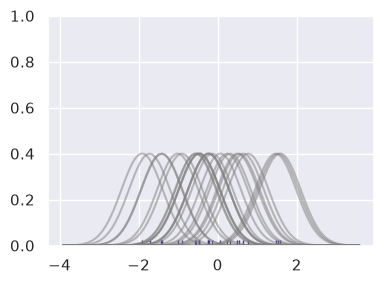
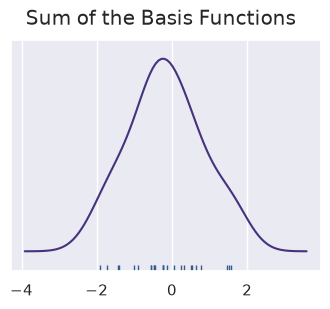
Optional extension: KDE construction. The core skill is to read a smooth distribution curve while remembering that smoothing choices affect its shape. The code below illustrates how kernels combine; you can skip the construction details on a first reading and continue with Styling.
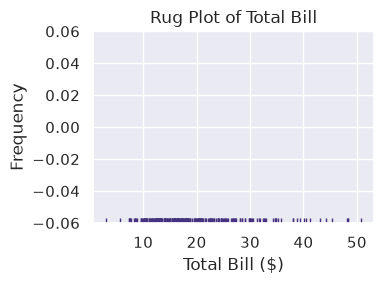
rugplot marks each observation on one axis. A KDE can be viewed as the sum of many smooth kernels centered on those observations.
sns.set_theme(palette='viridis')

ax = sns.rugplot(tips['total_bill'])
ax.set_title('Rug Plot of Total Bill')
ax.set_xlabel('Total Bill ($)')
ax.set_ylabel('Frequency')

ax.figure.set_size_inches(4, 3)
plt.tight_layout()
# Don't worry about understanding this code in depth.
# It visualizes how summing basis functions forms a KDE-like curve.
from scipy import stats

# Create dataset
np.random.seed(42)
dataset = np.random.randn(25)

ax = sns.rugplot(dataset)

x_min = dataset.min() - 2
x_max = dataset.max() + 2
x_axis = np.linspace(x_min, x_max, 100)

bandwidth = ((4 * dataset.std()**5) / (3 * len(dataset)))**.2

kernel_list = []
for data_point in dataset:
    kernel = stats.norm(data_point, bandwidth).pdf(x_axis)
    kernel_list.append(kernel)

    kernel = kernel / kernel.max()
    kernel = kernel * .4
    plt.plot(x_axis, kernel, color='grey', alpha=0.5)

plt.ylim(0, 1)

ax.figure.set_size_inches(4, 3)
plt.tight_layout()
sum_of_kde = np.sum(kernel_list, axis=0)
plt.figure(figsize=(4, 3))
plt.plot(x_axis, sum_of_kde)
sns.rugplot(dataset)
plt.yticks([])
plt.suptitle('Sum of the Basis Functions');
7.3.6. Styling#
sns.set_theme(style='whitegrid', context='notebook')
7.3.6.1. Size#
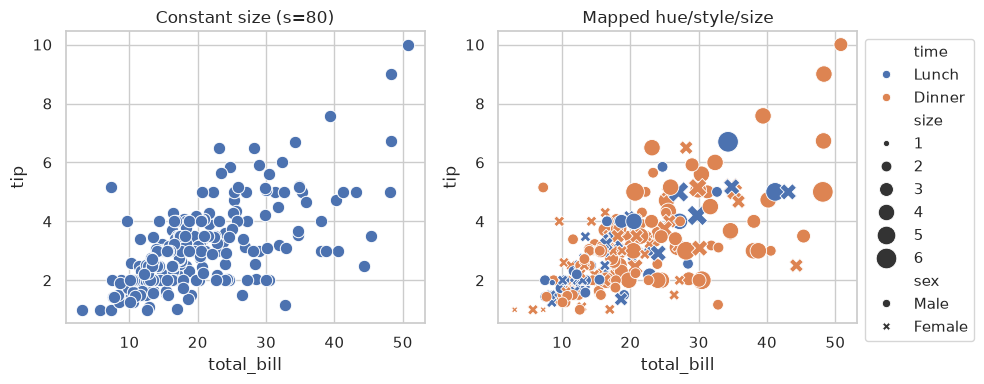
The size= and s= parameters do different jobs:
size=maps a data column to point size (semantic mapping). For example,size='size'draws larger points for larger parties.s=sets one constant size for all points.
sns.scatterplot(data=tips, x='total_bill', y='tip', s=100)        # every point the same size
sns.scatterplot(data=tips, x='total_bill', y='tip', size='size')  # point size follows the size column
fig, ax = plt.subplots(1, 2, figsize=(10, 4))

# constant size points
sns.scatterplot(data=tips, x='total_bill', y='tip', s=80, ax=ax[0])
ax[0].set_title('Constant size (s=80)')

# size mapped from a real numeric column in the dataframe
sns.scatterplot(
    data=tips, x='total_bill', y='tip',
    hue='time', style='sex', size='size', sizes=(20, 220),
    ax=ax[1]
)
ax[1].set_title('Mapped hue/style/size')
ax[1].legend(bbox_to_anchor=(1, 1))  ### move legend outside the plot

plt.tight_layout()
7.3.6.2. Alpha#
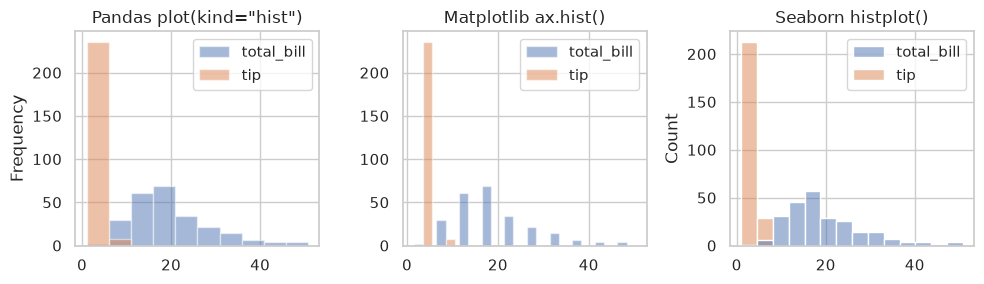
For overlapping distributions, transparency helps you see bars that would otherwise cover one another. Seaborn chooses transparency defaults based on settings such as layering and fill; it does not inspect each overlap to decide how transparent it should be. You can set alpha= explicitly in pandas, Matplotlib, and Seaborn.
Compare histograms using the same bins, scales, and transparency before attributing their appearance to the library. In the example below, bills and tips have different scales, so separate panels are often easier to interpret than overlapping both variables. See the histplot reference.
data = tips[['total_bill', 'tip']]

fig, ax = plt.subplots(1, 3, figsize=(10, 3))

### Pandas histogram
data.plot(ax=ax[0], kind='hist', title='Pandas plot(kind="hist")', alpha=0.5)

### Matplotlib histogram
ax[1].hist(data, label=['total_bill', 'tip'], alpha=0.5)
ax[1].set_title('Matplotlib ax.hist()')
ax[1].legend()

### Seaborn histogram
sns.histplot(data=data, ax=ax[2])
ax[2].set_title('Seaborn histplot()')

plt.tight_layout()
7.3.6.3. Overlay#
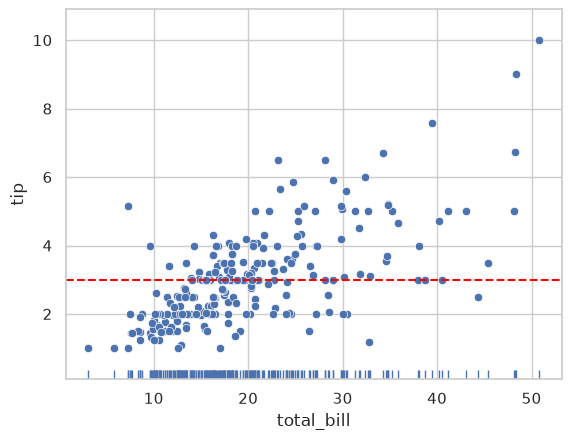
When combining multiple plot types, axes-level functions give you full control. On the other hand, figure-level functions create their own figure, making layering harder. Note that the three plots are all rendered on the same MPL axes object (ax).
ax.axhline() adds a horizontal line spanning the whole or fraction of the Axes. (see matplotlib.pyplot.axhline). The basic syntax of axhline() is:
ax.axhline(y=0, xmin=0, xmax=1, **kwargs)
Commonly used parameters for ax.axhline() include:
Parameter |
Meaning |
|---|---|
|
y-value where the horizontal line is drawn |
|
start of the line (fraction of axis width, 0–1) |
|
end of the line (fraction of axis width, 0–1) |
|
styling options like |
fig, ax = plt.subplots()
sns.scatterplot(data=tips, x='total_bill', y='tip', ax=ax)
sns.rugplot(data=tips, x='total_bill', ax=ax)                   # Add rug marks
ax.axhline(y=tips['tip'].mean(), color='red', linestyle='--')   # Add a reference line at the mean tip
<matplotlib.lines.Line2D at 0x7f8a16f7c690>
Improve a chart for its audience
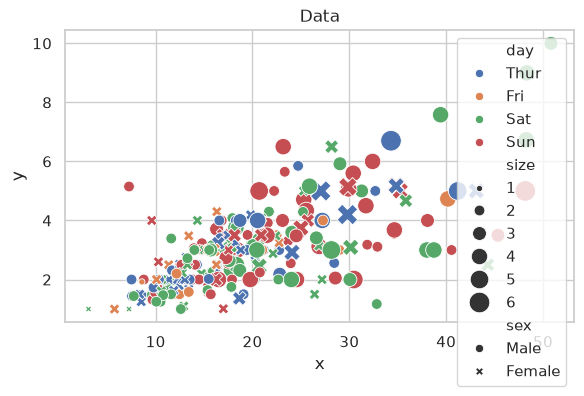
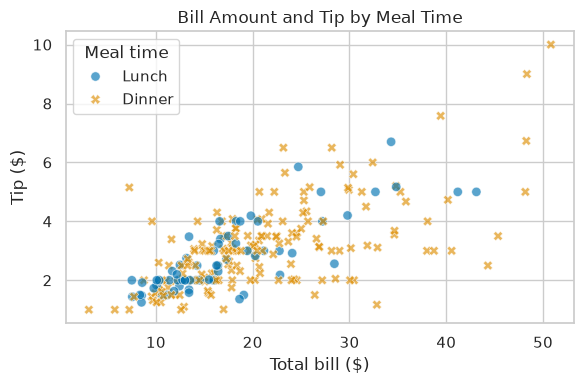
A restaurant manager asks whether bill amount and dollar tip have a similar relationship at lunch and dinner. The draft below uses colors for days, shapes for sex, and sizes for party size. Those mappings can be useful for other questions, but this manager needs a meal-time comparison. The generic title and axis labels also leave the amounts and units unclear.
Redraw it to answer the manager’s question with fewer visual demands. Judge your choices by whether they help the reader find the relevant comparison, not by whether the chart looks more decorative. Keep the same observations and avoid cutting off values to make a pattern look stronger.
# Draft chart: several mappings, but no meal-time comparison or dollar labels.
fig, ax = plt.subplots(figsize=(6, 4))
sns.scatterplot(data=tips, x='total_bill', y='tip',
                hue='day', style='sex', size='size', sizes=(20, 220), ax=ax)
ax.set_title('Data')
ax.set_xlabel('x')
ax.set_ylabel('y')
plt.tight_layout()
plt.show()
### Exercise: Improve a Chart for a Manager
# Practice path: Additional practice.
# Redraw the draft above to compare bill amounts and dollar tips at lunch and dinner.
# 1. Keep total_bill on x and tip on y, using all observations in tips.
# 2. Make meal time easy to distinguish. Remove mappings unrelated to this question.
# 3. Add a title, axis labels with dollar units, and an understandable legend.
# 4. Choose a readable theme and colors; consider readers who cannot distinguish colors.
# 5. Make overlapping points easier to see without hiding observations.
# 6. In comments, explain two design changes and the reading problem each addresses.
#    State one supported finding and one limitation that styling cannot resolve.
### Your code starts here.


### Your code ends here.
Exit ticket: explain a chart choice
Before leaving class, answer these questions in two or three sentences each. Your instructor can use the responses to identify what needs another example. This classroom check is separate from the automatically graded Lab and Homework.
A manager compares customer-support response times for two service teams. One row is one support request; the columns are team and response_minutes. A mean bar chart shows Team A at six minutes and Team B at eight minutes. No individual observations, error bars, or sample counts are displayed.
Chart choice: Which chart would you request to compare typical response times and consistency across teams? Explain what it would show beyond the mean bars.
Supported finding: State one conclusion supported by the displayed means. Can you conclude that Team A answered every request faster?
Missing evidence: Identify one additional piece of information needed before changing staffing, and explain how it could affect the decision.
Instructor discussion guide
A box plot can compare medians and the middle-half spread, supplemented by individual observations and group counts. Other chart choices are acceptable when the explanation connects them to the question.
Team A has the lower sample mean response time. The bars do not establish that every Team A request was faster, that Team A has less variability, or that staffing caused the difference.
Useful missing evidence includes the number of requests, their distribution and unusually long waits, request complexity, observation period, or current staffing. For example, unequal request complexity could make the mean comparison a poor basis for reallocating staff.
Look for three things in each response: a chart matched to the question, a finding limited to the displayed evidence, and a relevant information gap. If a student confuses the mean with every observation, revisit the equal-means delivery example in Plot Families.